Add a button
Add a Button in Power PagesAdd a Button
Buttons provide an interactive way for users to navigate your Power Pages site. They can link to external URLs or direct visitors to different pages within your portal.
Add a Button
- Open the Design Studio to edit your portal’s content and components.
- Select the page where the button should be added.
- Choose the section where the button will be placed.
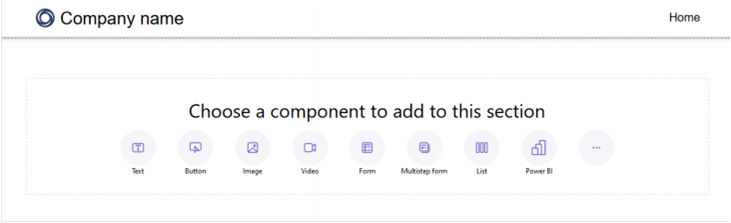
- Hover over an editable area and select the Button icon from the component panel.
- Enter a button label that will appear on the button.
- Specify whether the button redirects to a URL or to a page within the site.
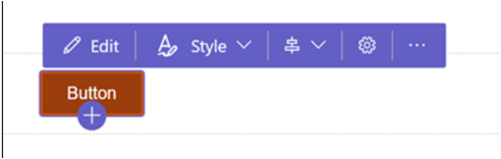
- Select the button to open additional editing options.
Editing Options
- Modify the button label and choose the destination URL or internal page.
- Select a style: Primary or Secondary.
- Set the horizontal alignment of the button.
- Define the minimum width and height for consistent sizing.
- Duplicate the button, move it within the section, or delete it.