Adding Text Made Easy
Add Text in Power PagesAdd Text
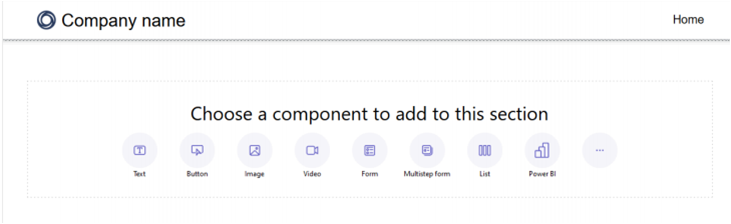
Use the Text Box component to add written content to your page.
Tip: You can also use Copilot to generate text for your Power Pages site. Power Fx is supported across many components, including text, allowing dynamic values using expressions.Add a Text Component
- Open the Design Studio to edit your page’s content and components.
- Select the page you want to modify.
- Choose the section where you want to insert the text component.
- Hover over an editable area on the canvas and select the Text icon.
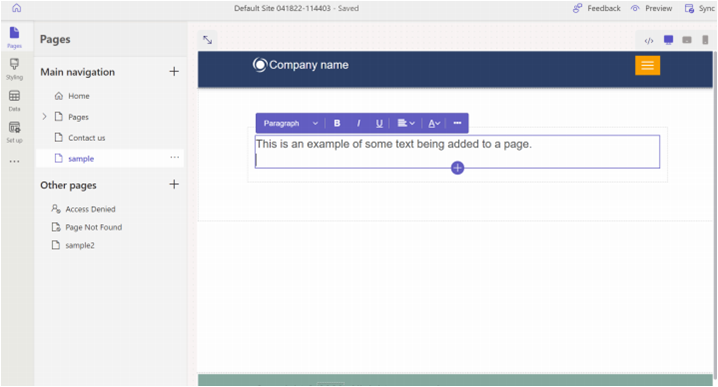
- Enter your custom text in the provided text box.
Edit a Text Control
After adding a text control, selecting it opens the properties bar where you can configure its settings.
Text Component Properties
Style
Choose text styles like Title, Headings, Subheadings, Paragraph, or Small text.
Format
Apply bold, italic, or underline formatting.
Alignment
Align text left, center, or right.
Hyperlink
Link selected text to a URL or another page.
Color
Select a text color from the theme palette.
Others
Duplicate, reorder, or delete the text component.
Create a Link within a Text Component
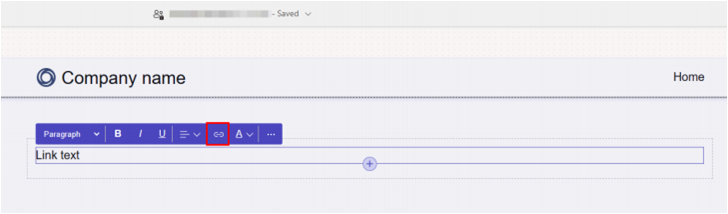
- Select the text you'd like to link.
- Choose the Link button from the Text Component toolbar.
Field Descriptions
Display Text
Shows the selected text for the link.
Destination
Choose where the link goes:
- Enter a URL, or
- Select a page within the site.
Link Style
Override the global link style for this specific link. By default, it follows the surrounding text style.
Edit or Remove a Link
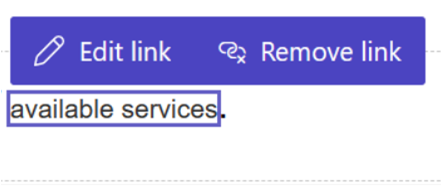
- To edit a link, select it and choose Edit Link.
- To remove a link, select it and choose Remove Link.