Building a PCF Control Grid View in Power Apps
PCF Control Grid View - Complete GuideBuilding a PCF Control Grid View in Power Apps
Overview
This project demonstrates how to build a reusable PCF Dataset Grid using React, TypeScript and the Power Apps Component Framework. The control displays Dataverse records with custom search, pagination, toolbar, refresh button and responsive styling.
- Power Apps Component Framework
- React
- TypeScript
- Dataverse Dataset API
- CSS
Step 1 - Create PCF Project
pac pcf init --namespace Demo --name EventsGrid --template dataset
cd EventsGrid
npm install
Step 2 - Folder Structure
The project is organized into reusable folders for better maintainability.
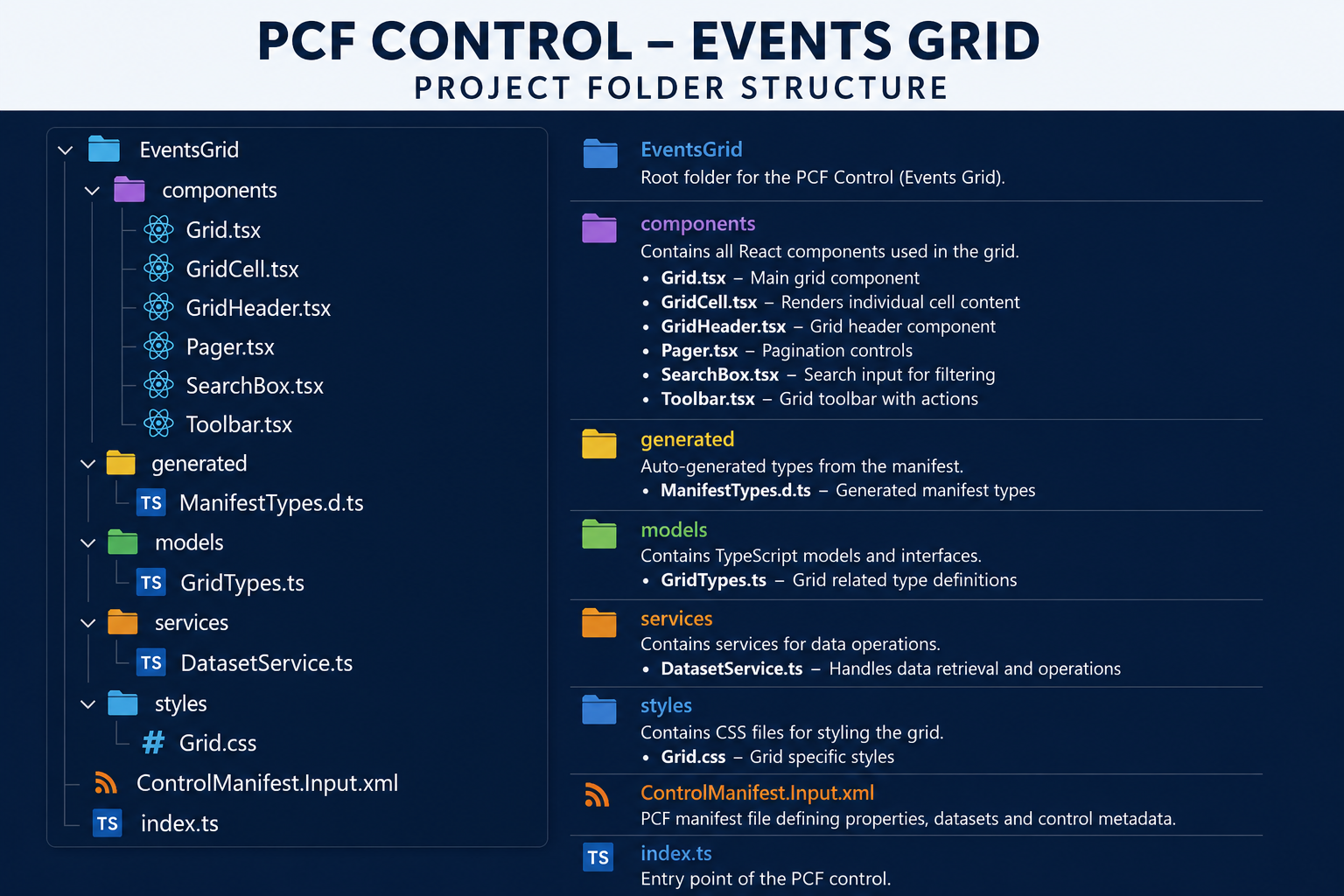
| Folder / File | Purpose |
|---|---|
| components | Contains all reusable React UI components. |
| Grid.tsx | Main grid responsible for rendering rows and columns. |
| GridCell.tsx | Displays an individual cell value. |
| GridHeader.tsx | Displays column headers and sorting. |
| Pager.tsx | Handles pagination logic. |
| SearchBox.tsx | Provides record search functionality. |
| Toolbar.tsx | Contains Refresh and action buttons. |
| generated/ManifestTypes.d.ts | Auto-generated PCF manifest types. |
| models/GridTypes.ts | Stores interfaces and model definitions. |
| services/DatasetService.ts | Retrieves records from Dataverse Dataset API. |
| styles/Grid.css | Contains all grid styling. |
| ControlManifest.Input.xml | Defines dataset, resources and control configuration. |
| index.ts | Entry point of the PCF control. |
Step 3 - Grid Component (Grid.tsx)
This component renders the entire grid.
const Grid = () => {
 return (
   <table>
      <thead>...</thead>
      <tbody>
         {/* Render Rows */}
      </tbody>
   </table>
 );
};
Step 4 - Grid Header
const GridHeader=()=>{
 return(
   <thead>
      <tr>
        <th>Name</th>
        <th>Created On</th>
      </tr>
   </thead>
 );
}
Step 5 - Grid Cell
const GridCell=({value})=>{
 return <td>{value}</td>;
}
Step 6 - Search Box
Filters records based on user input.
const SearchBox=()=>{
 const [text,setText]=useState("");
}
Step 7 - Pagination
const Pager=()=>{
 return <button>Next</button>;
}
Step 8 - Toolbar
const Toolbar=()=>{
 return <button>Refresh</button>;
}
Step 9 - Dataset Service
Responsible for reading dataset records.
export class DatasetService{
  public getRecords(context:any){
      return Object.values(context.parameters.dataset.records);
  }
}
Step 10 - Styling
table{
 width:100%;
 border-collapse:collapse;
}
th{
 background:#4B1FA2;
 color:#fff;
}
td{
 padding:10px;
 border-bottom:1px solid #ddd;
}
Step 11 - Manifest Configuration
<control namespace="Demo"
 constructor="EventsGrid"
 version="1.0.0">
</control>
Step 12 - Main Entry (index.ts)
public updateView(context:ComponentFramework.Context<IInputs>):HTMLElement{
   const records=context.parameters.dataset.records;
   return this.container;
}
Step 13 - Build & Test
npm run build
npm start(for local test)
pac pxf push(import and publish to Environment)
Step 14 - Final Grid View
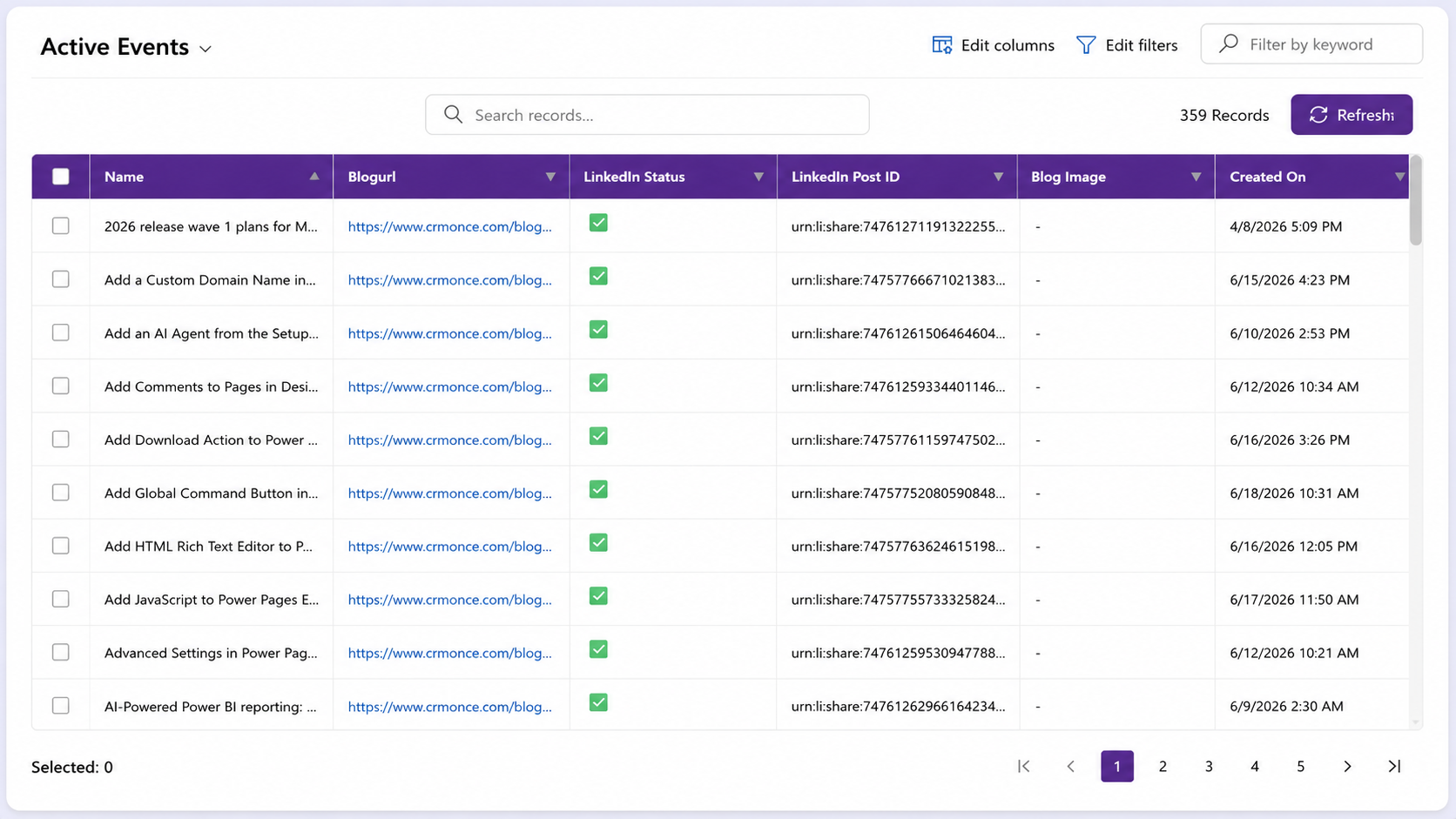
The completed control displays Dataverse records in a modern responsive grid. The implementation includes search, refresh, pagination, record count, reusable components and Dataset API integration.
- Search Records
- Refresh Button
- Record Count
- Responsive Layout
- Checkbox Selection
- Reusable Components
- Custom CSS
- Easy Maintenance
Project Flow
- Create PCF Project
- Create Folder Structure
- Create Components
- Create Dataset Service
- Create Models
- Add Styling
- Configure Manifest
- Implement updateView()
- Build Project
- Test in Harness
- Deploy to Power Apps
Future Enhancements
- Inline Editing
- Column Filtering
- Export to Excel
- Dark Theme
- Virtual Scrolling
Conclusion
The PCF Control Grid View provides a flexible and modern approach for displaying Dataverse records in Power Apps. By leveraging the Power Apps Component Framework, developers can build highly interactive, reusable, and responsive controls that significantly improve the end-user experience compared to standard grid controls.
Success Tip: Always test your PCF control using the local test harness before deploying it to your Power Apps environment.