Configure and manage category for knowledge articles
Configure and Manage Categories for Knowledge ArticlesConfigure and Manage Categories for Knowledge Articles
Create a Knowledge Category
- Sign in to Power Pages
- Go to Settings → Service Management → Categories
- Select New, enter the Name and Description
- Choose a Parent Category or leave blank for a top-level category
Associate a Category with a Knowledge Article
- Open Customer Service Hub → Service → Knowledge Articles
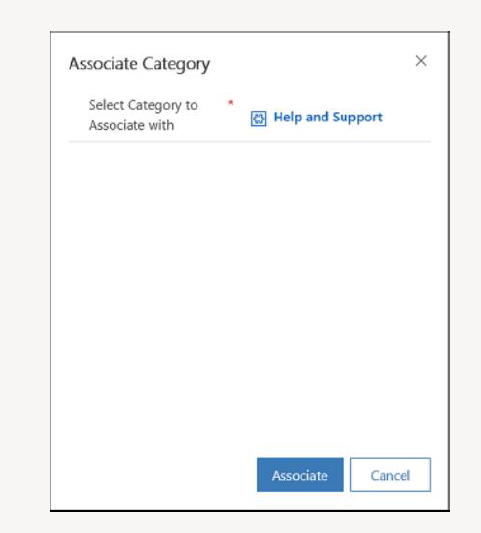
- Open an article and click Associate Category
- Select the category and click Associate
Remove a Category from an Article
- In Customer Service Hub, open the knowledge article.
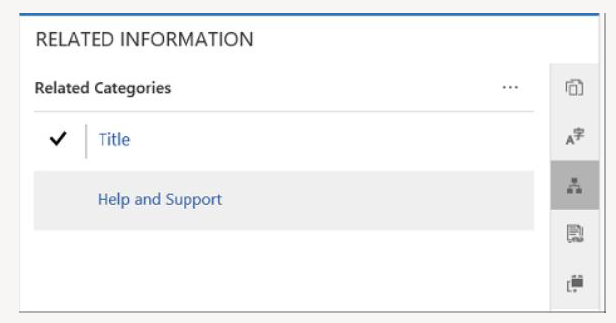
- On the Summary tab, under Related information, select Related Categories.
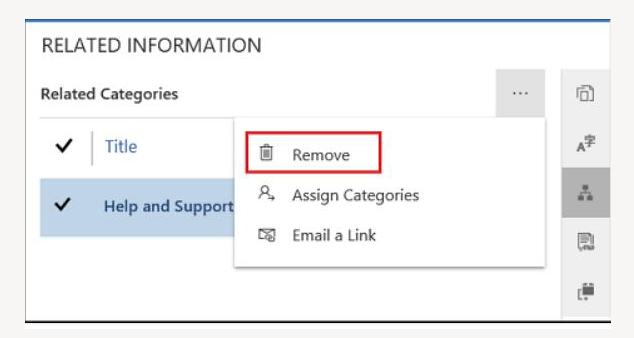
- Select the category you want to remove.
- From More Commands, select Remove.
Delete a Knowledge Category
- Sign in to Power Pages.
- Go to Settings → Service Management.
- Under Knowledge Base Management, select Categories.
- Select the category and choose Delete.
Enable Ratings for a Knowledge Article
- Sign in to the website and open the knowledge article.
- Edit the article using the inline editor.
- On the Options tab, select Enable Rating.
Expand and Collapse Sections
You can add expandable sections by using the collapsible command button.
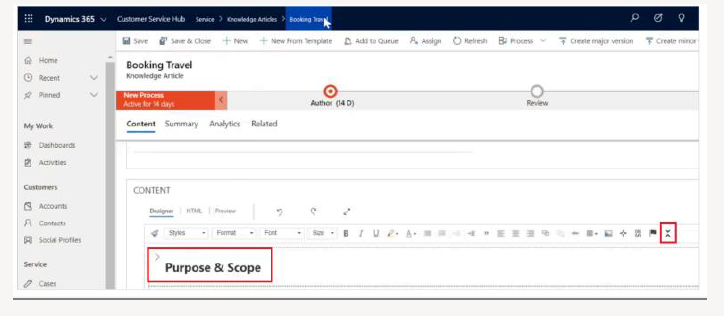
Articles can display one section expanded while others remain collapsed.
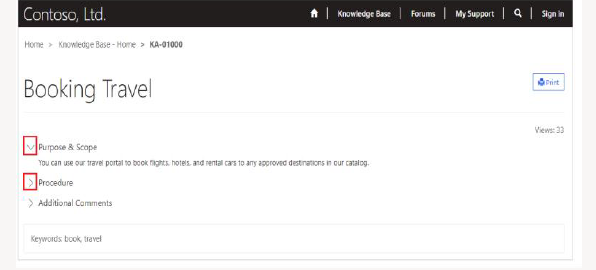
Considerations for Collapsible Sections
- Default state is collapsed.
- No additional changes required for existing pages or templates.
- Print preview preserves current expand/collapse state.
- Includes additional JavaScript and CSS.
Customize Expand and Collapse Behavior
- Default CSS file: collapsible.css
- Default JavaScript file: collapsible.js
- Update templates to reference custom files if needed
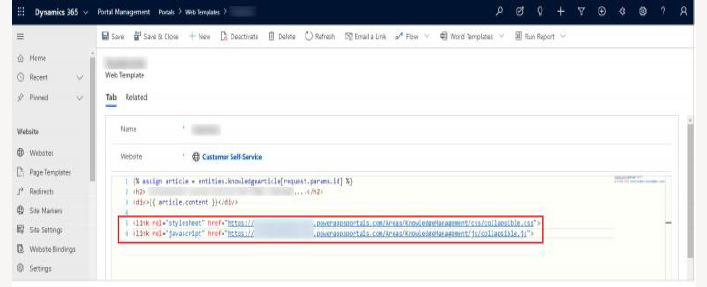 Note:
Note:Custom CSS and JavaScript allow full control over expand/collapse behavior and styling.