Create a site with Power Pages (Manually)
Create a Site with Power Pages (Manually)Steps to Create a Site
- Navigate to Power Pages. If this is your first visit, click Try it for free to start a 30-day trial.
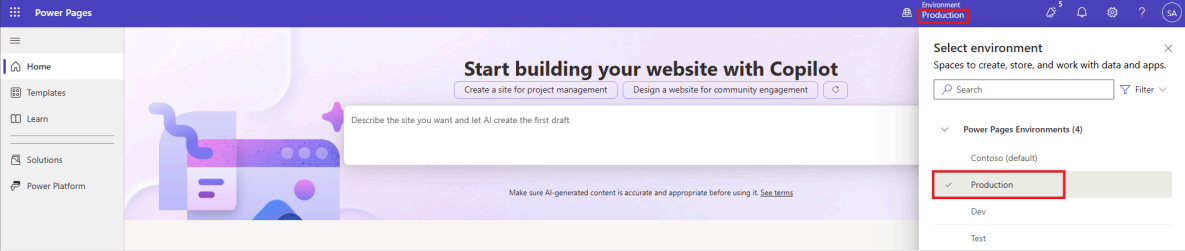
- Select the Microsoft Dataverse environment where you want to create the site. Note: Avoid using the Default environment, as it is shared across the tenant and may lead to unintentional data exposure.
- On the home page, select Start with a template.
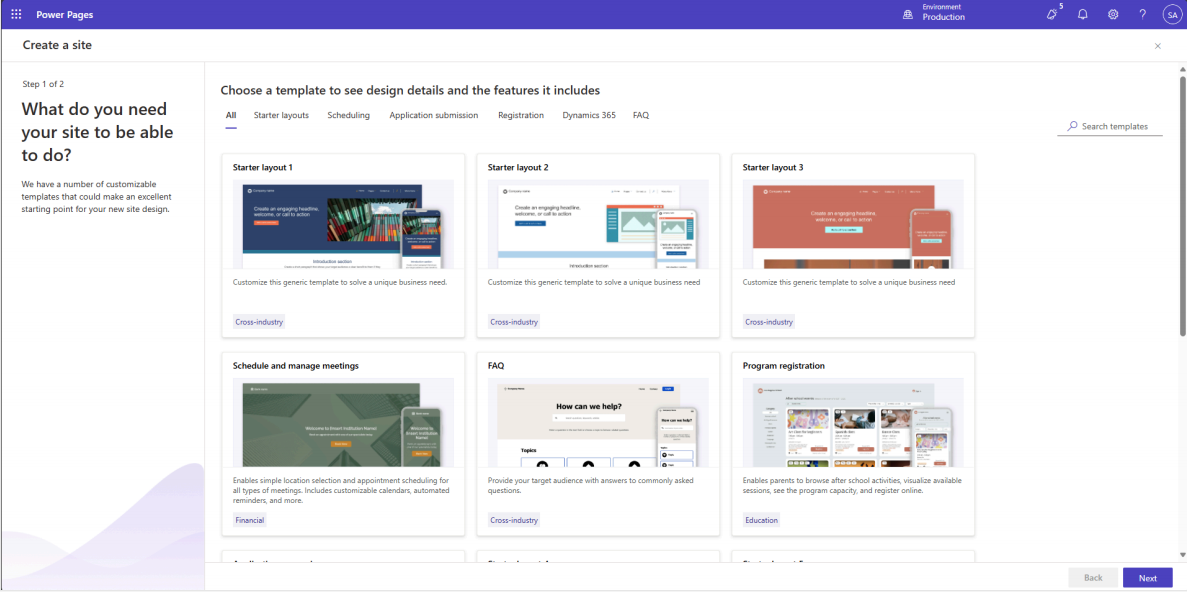
- Browse through the available templates. Hover over a template and select Preview template to view how it looks on different devices.
- Once you identify a suitable template, select Choose this template.
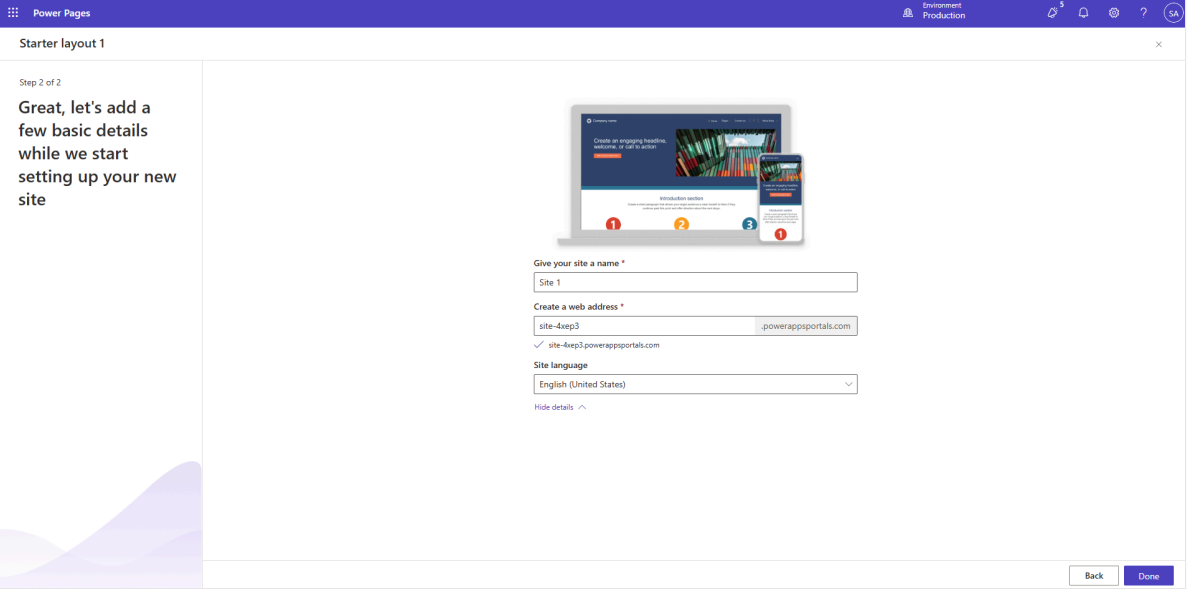
- Review the default site name and web address, then select Done. If none of the business templates meet your requirements, choose a Starter layout or Blank page to build the site from scratch. For more details, refer to Power Pages templates. Site provisioning may take a few minutes. You can update the site name and web address later if needed.
- After the site is created, you can begin editing or previewing your website.
Roles and Permissions Required
- User account with Read-Write Access Mode
- System Administrator role
- Permission to register an app in Microsoft Entra
- Dynamics 365 Administrator
- Power Platform Administrator
Additional Information
- When a site is created using a new trial environment, metadata for all templates is automatically loaded.
- This metadata appears as website records in the Portal Management app.