Customize webpages with design studio page editor
Customize webpages with design studio page editorCustomize webpages with design studio page editor
After creating your required webpages and organizing them within the site map, you can begin enhancing them with various components. The WYSIWYG Design Studio Page Editor, available in the Pages workspace, allows you to easily add, configure, and modify components directly within the canvas to build your desired page layout and functionality.
Using the editor
To work with the page editor:
- Open the design studio to begin editing your portal’s content and components.
- Navigate to the Pages workspace.
- Select the page where you want to add a section or component.
- Add a section by hovering over any editable area and selecting the plus (+) icon. You’ll be able to choose from six different section layout options.
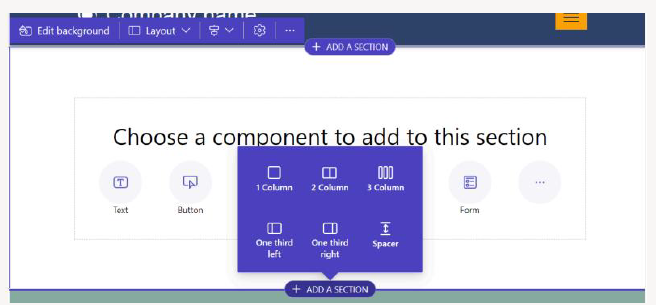
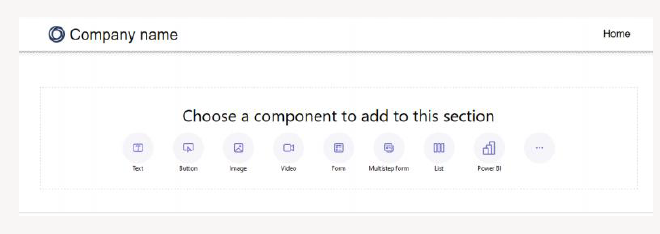
- Add a component by hovering over the desired section and selecting the + icon again. Then choose from the list of available components.
- To delete a component, select it on the canvas and choose Delete.
You can also build and reuse web templates as components on your webpages. Refer to How to: Create a web template component for more details.
Rearrange sections and components
You can rearrange sections, columns, and components using drag-and-drop. To move an item, click and hold the left mouse button—or press Spacebar when the item is focused—then drag it to the target location using your mouse or arrow keys. Drop zones will appear to show where the item can be placed. Release the mouse button or press Spacebar again to drop it.
Note:Certain elements, such as the header, footer, and some nested items (like links within a text component), cannot be dragged. Drag-and-drop is also not supported for sections where the
flex-direction CSS property is set to
row-reverse.
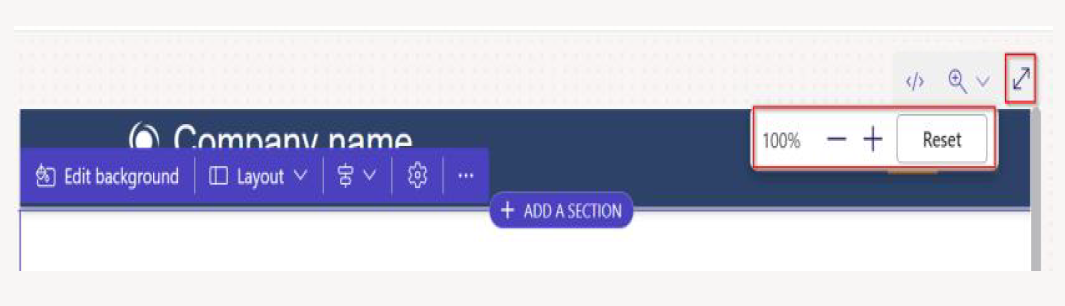
For a more focused editing experience, you can switch to full-screen mode by selecting the double-arrow icon in the upper-right corner. Additional options allow you to open the page in Visual Studio Code, zoom in (+), zoom out (-), or reset the canvas view back to 100%.
Edit components
All sections and components support in-context editing, allowing you to modify them directly on the canvas. To customize the styling of any section or component, select the paintbrush icon.
The available style options depend on the type of component. Currently, styling is supported for sections, text, buttons, images, and videos. Style categories may include:
- Layout – Adjust spacing and positioning, such as margins, padding, and element placement.
- Decorations – Apply visual enhancements like borders, shadows, and corner radius.
- Typography – Customize text appearance, including font family, font size, and letter spacing.
When you apply styles using the paintbrush icon, these settings generally override anything defined in the Styling workspace or existing custom CSS. For example, changing the font of a text component through the paintbrush typically supersedes theme-based settings (like “Heading 1”) or inherited styles. However, styles defined with
!important in your custom CSS will not be overridden.
Undo/Redo
- In the Pages workspace, the Undo and Redo buttons appear at the top-left corner of the canvas.
- The Undo button becomes active whenever you make a change.
- The Redo button becomes active after you undo an action.
- To revert your last action, select Undo.
- To reapply an undone action, select Redo.
 Note:
Note:Undo/redo functionality only applies to changes made within the Pages workspace. Your action history is cleared whenever you refresh the browser or switch to a different workspace in the design studio.
Limitations
Certain actions aren't supported in the Pages workspace, including syncing, saving, previewing, zooming, expanding or reducing the workspace, navigating between workspaces or pages, and uploading media or CSS files.
Note:- The header and footer cannot be deleted in the Pages workspace. For custom page layouts, refer to the Web templates documentation.
- For sites created before September 23, 2022, there is a known issue involving themes. More information is available under Adjusting the background color for your Power Pages site.
-
If custom JavaScript is placed inside a
<script>tag within the page copy, Liquid tags are automatically replaced with an HTML wrapper when Studio loads. This causes the custom JavaScript to break. To prevent this, always add custom JavaScript using thecustom_javascriptattribute.
Edit code components
You can modify the properties of code components directly within the Pages workspace. To edit a code component:
- Select the component and choose Edit code component from the toolbar.
- Adjust the desired properties for the component.
- Select Done to apply your changes.
For additional guidance on adding code components to forms and pages, refer to Use code components in Power Pages.
Liquid errors
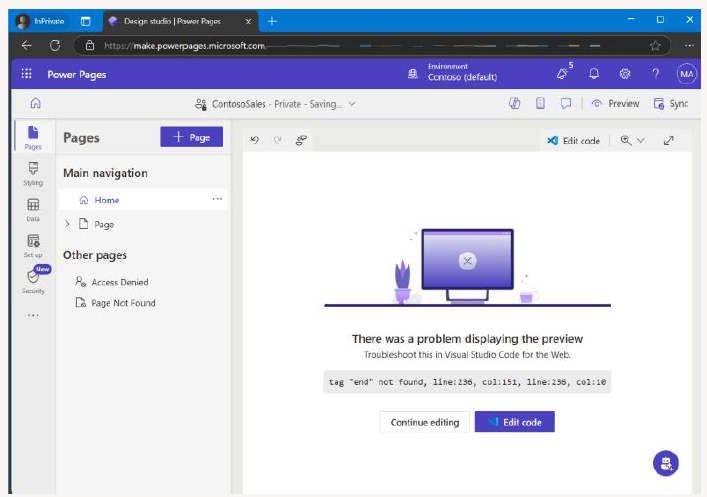
If a page fails to render due to a Liquid syntax error, an error dialog will appear. This dialog explains the issue and provides an Edit code button that opens the file in Visual Studio Code for the Web. If you choose Continue editing instead of fixing it immediately, the error will still be visible in the notifications panel, along with another Edit code option.
Resolve a Liquid error
-
In the error dialog, select Edit code. Visual Studio Code for the Web will open, highlighting the line
with the issue (for example, a missing
{% endif %}tag). - Correct the Liquid markup.
- Press Ctrl + S to save your changes.
- Return to Power Pages Studio and select Sync to reload the page. The page should now render correctly.