Edit site header
Edit Site Header - GuideEdit Site Header
Customize your site’s header to reflect your organization’s branding. With the header editor, you can:
- Update the site title and upload your organization’s logo.
- Add alt text for logo images to improve accessibility.
- Modify colors and fonts to match your brand identity.
- Preview how the header appears across different screen sizes.
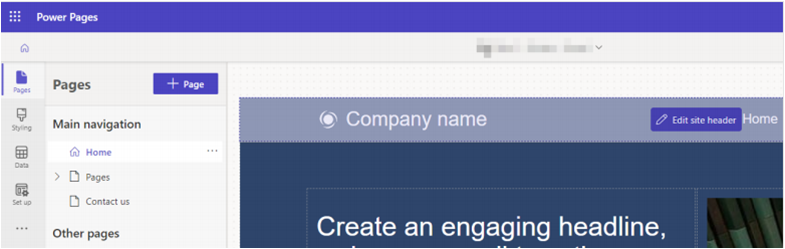
In the Pages workspace, hover over the header component and select Edit site header. The available editing options will open in a panel within the workspace.
Title and Logo
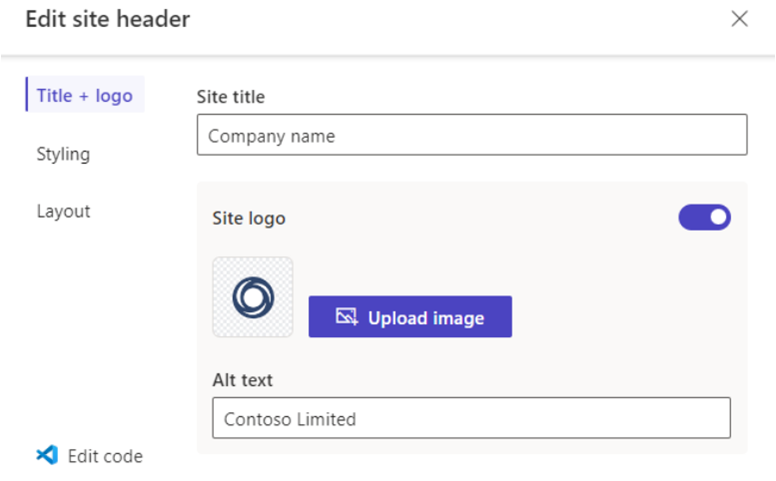
You can update your site's title and modify or remove the logo from the Title + logo section in the header editing panel. These elements can also be customized using Liquid code.
- Enter the site name in the Site title field.
- To replace the logo, select Upload image and choose an image file.
- Provide descriptive alt text for the logo to improve accessibility.
- To remove the logo entirely, turn off the Site logo toggle.
Customize the Title and Logo Using Liquid
The site header is built using three content snippets, each defined with Liquid markup:
| Content Snippet | Liquid Syntax |
|---|---|
| Site name | {{ "{{ snippets['Site name'] }}" }} |
| Logo URL | {{ "{{ snippets['Logo URL'] }}" }} |
| Logo alt text | {{ "{{ snippets['Logo alt text'] }}" }} |
If you modify the title or logo directly in the code, these customizations override any updates made through the header editor. When code-based changes override your edits, you may see this message:
“Your updates may not show on the site because of customizations to the code made by someone in your org.”
Styling
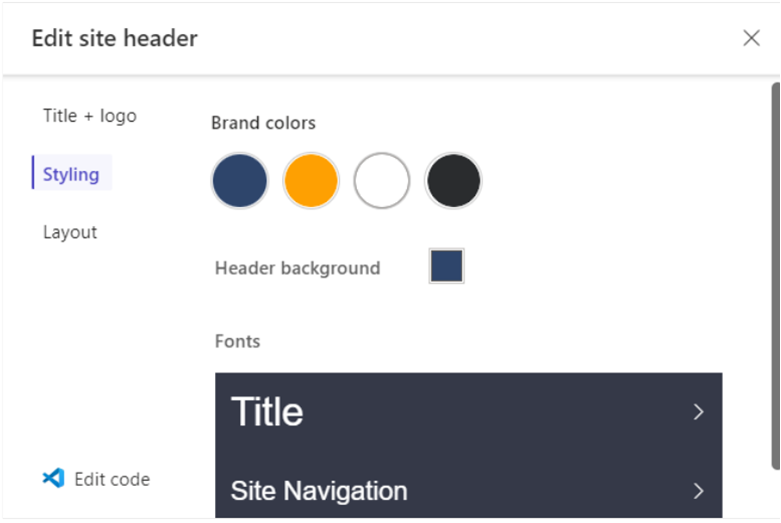
You can adjust the appearance of your site’s header from the Styling section in the header editing panel.
Tip: You can further customize the header’s design by modifying your site’s CSS files.Brand colors
- Select the circles under Brand colors to change the colors used in the header.
- Select the square beside Header background to change the background color.
- Select > beside Title and Site Navigation to modify typography settings.
Layout
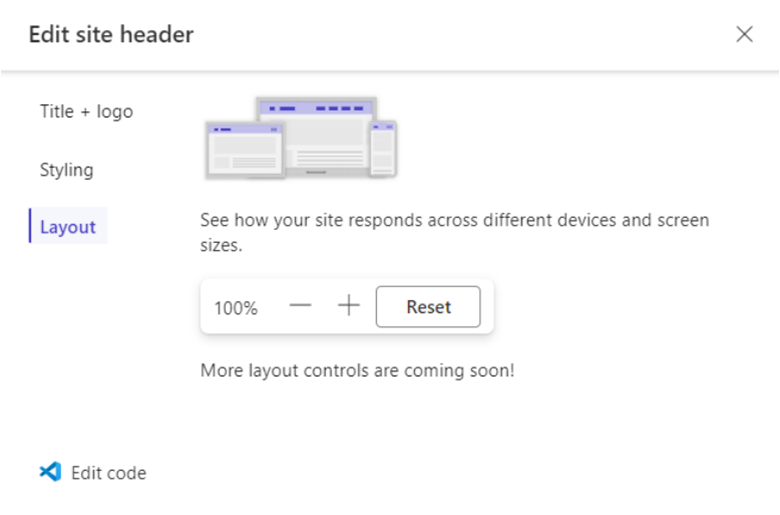
Preview your site's responsive layout in the Layout section of the header editing window.
Use the + and − controls to adjust the display size.