Enable content moderation on ideas
Enable Content Moderation on Ideas in Power PagesEnable Content Moderation on Ideas
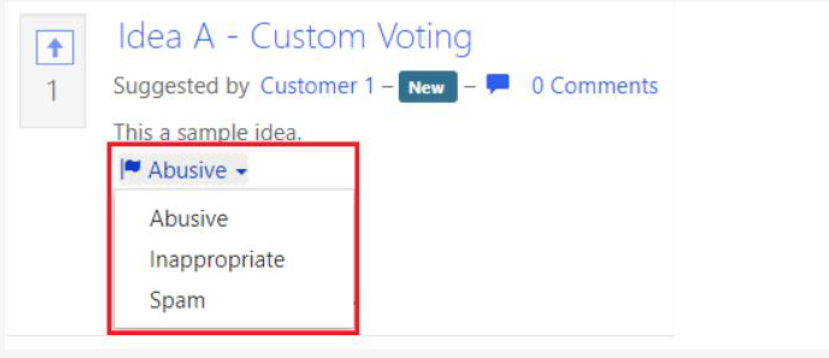
Content moderation allows administrators to review and control ideas submitted by users on a Power Pages site. After setting up a moderation policy and assigning it to an idea forum, users can flag inappropriate ideas, and administrators can review and take action.
Content Moderation Steps
- Create a content moderation policy
- Assign the policy to an idea forum
- Review and moderate flagged ideas
Create a Content Moderation Policy
Follow these steps to create a moderation policy:
- Open Power Pages.
- Navigate to Portals → Content moderation policies.
- Select New to create a new policy.
-
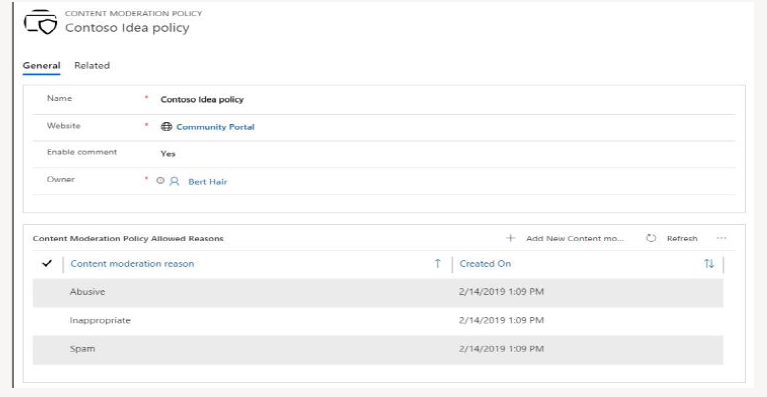
Fill in the basic information:
- Name: A name for the moderation policy.
- Website: The website where this policy will be used.
- Enable comment: Choose Yes if users should provide additional comments when flagging an idea.
-
Add moderation reasons by selecting
Add new content moderation policy allowed reason. Common reasons include:
- Abusive
- Inappropriate
- Spam
- Save the policy.
Add Content Moderation Policy to an Idea Forum
Once the policy is created, link it to a specific idea forum:
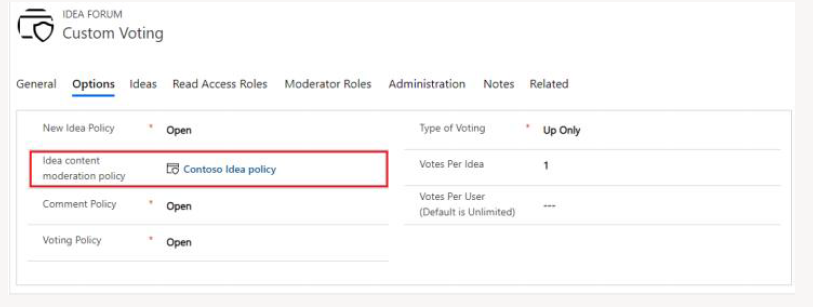
- Open the Idea Forum you want to configure.
- Go to the Options tab.
- In the Idea content moderation policy field, select the policy you created.
- Save the record.
Moderate an Idea
After the moderation policy is assigned:
- Users can flag ideas by selecting one of the allowed moderation reasons.
- Flagged ideas are automatically hidden from the website.
- These ideas appear in the Flagged Ideas view for administrators to review.
To moderate flagged ideas:
- Open Power Pages.
- Go to Community → Ideas.
- Change the view to Flagged Ideas.
- Open the idea you want to review.
-
In the Moderation status field, choose one:
- Accepted – You agree with the user’s flagging reason.
- Rejected – You disagree with the user’s flagging reason.
- The idea moves to the Moderated Ideas view.
- As the administrator, decide whether the idea should remain active or be deactivated.