How to Implement Walk-In Queue Management and Teams Telephony in Dynamics 365
At a glanceTwo front doors — a walk-in reception desk and a Teams Phone line — that both land on one case record in Dynamics 365 Customer Service.Who it's for✓ Public-sector and social-services teams✓ Service centres with walk-in clients✓ Contact centres moving to Teams PhoneWhat you'll learn✓ The data model and setup✓ How the walk-in and lobby work✓ How calls link to the right case2 channelsin person and by phone1 casefor every visit and callLow-codeno custom applicationTeams Phonenative voice channelIn this article- 01The challenge and what we built
- 02Solution architecture at a glance
- 03How to implement: the data foundation
- 04How we implemented walk-in reception
- 05How to implement Teams telephony: the setup
- 06How we implemented the telephony
- 07What the agency gets
- 08Implementation roadmap
- 09Frequently asked questions
01The challenge and what we built
A social-services agency needed clients to reach caseworkers in two ways, in person at reception and by phone, without losing track of anyone between the front desk, the phone line and the case file. For their proof of concept, we built both on Dynamics 365 Customer Service using low-code configuration and automation, with no custom-built application.
🏢Walk-in receptionA client checks in at reception and receives a token. A case is created and queued, and the client gets an email listing the documents to bring. When a caseworker clicks Call next visitor, the lobby screen announces the token and the case opens on the caseworker's screen.☎️Teams telephonyClients call one public service number delivered through Microsoft Teams Phone, or a caseworker's own Teams number. The caller is matched to their contact record, the call is linked to their open case, and the notes or full transcript land on the case timeline.Both front doors land on the same case record, so every visit, call and document request sits in one place for the caseworker and the supervisor.
02Solution architecture at a glance
Reception fills in one form and the caseworker clicks one button; the platform handles everything in between.
Walk-in journey: one reception form starts everything, one click brings the client inSTEP 1Reception check-inClient, service and visit type capturedSTEP 2Token & caseToken issued, case created or reopened, queuedSTEP 3Welcome emailToken, people ahead and documents to bringSTEP 4Lobby: waitingToken listed under its serviceSTEP 5Call next visitorOne button on the caseworker dashboardSTEP 6Lobby: now callingFull-screen popup and voice announcementSTEP 7Case opensOn the caseworker's screen, with historySTEP 8Case processIntake through to ResolvedOn the phone side, a call to the public service number and a direct call to a caseworker take different paths, but both finish on the client's case.
Telephony: two call routes, one case timelineCall to the service numberVoice workstream routes the callAgent accepts in Copilot Service workspaceCaller identifiedBy phone number, or by email for Teams callersLinked to the open caseAgent screen refreshes with customer and caseConversation & transcript savedOn the case timelineDirect call to a caseworkerRings in the Calls panelInside Dynamics 365, on any pageCaller matched to the clientCall linked to their open caseAgent takes notesTyped in the Calls panel during the callCall completed on the caseNotes copied to the call recordBoth routes end on the client's case timeline — if there are several open cases, the agent picks one03How to implement: the data foundation
✅ Before you start- A Dynamics 365 Customer Service environment with the voice channel provisioned and unified routing enabled.
- A Teams Phone licence and a Teams resource account with a service number for the public line.
- Power Apps maker access to build the solution, the custom tables and the lobby canvas app.
- A sandbox environment to build and test in before moving the solution to production.
Start with the data model. The walk-in needs four custom tables alongside the standard Case and Contact tables, all packaged in one solution so it can move cleanly between environments.
| Table | Key information | Purpose |
|---|---|---|
| Visit / Check-In | Client, service category, visit type (new request, follow-up, status inquiry), status (Waiting, Called, Being Served, Completed, No-Show, Cancelled), token, case, wait time | One record per person at the desk |
| Service Category | Name, short code, programme area, target queue | Drives the token letter, the case title and where the case is routed |
| Checklist Template | Service category, document name | The documents each service requires |
| Case Checklist Item | Case, document, status (Pending, Received, Rejected, Waived) | Tracks each required document on a case |
Queues, case process and settings
- Queues: one queue per programme area (for example Senior Services, Public Benefits and Utility Assistance). Caseworkers are queue members, which is how the system knows whose tokens they can call. See Create and manage queues.
- Case process: a six-stage business process — Intake, In Review, Docs Pending, Submitted to Agency, Decision, Resolved.
- Central settings: organisation name, public service number, time zone and email signature are stored as environment variables, so a change in one place applies everywhere with no rework.
04How we implemented walk-in reception
1. Check-in and token generation
When reception saves a visit, the system automatically:
1Builds a token from the programme area (S for Senior Services, P for Public Benefits, U for Utility Assistance) and the next number for the day — S-001, S-002 and so on.2Checks whether the client already has an open case for the same service.3New request: creates the case at Intake, places it in the right queue, counts the people ahead and emails the client the list of documents to bring.4Follow-up or status inquiry: links the visit to the existing case instead of creating a duplicate, and sends a “Welcome back” email listing only the documents still outstanding.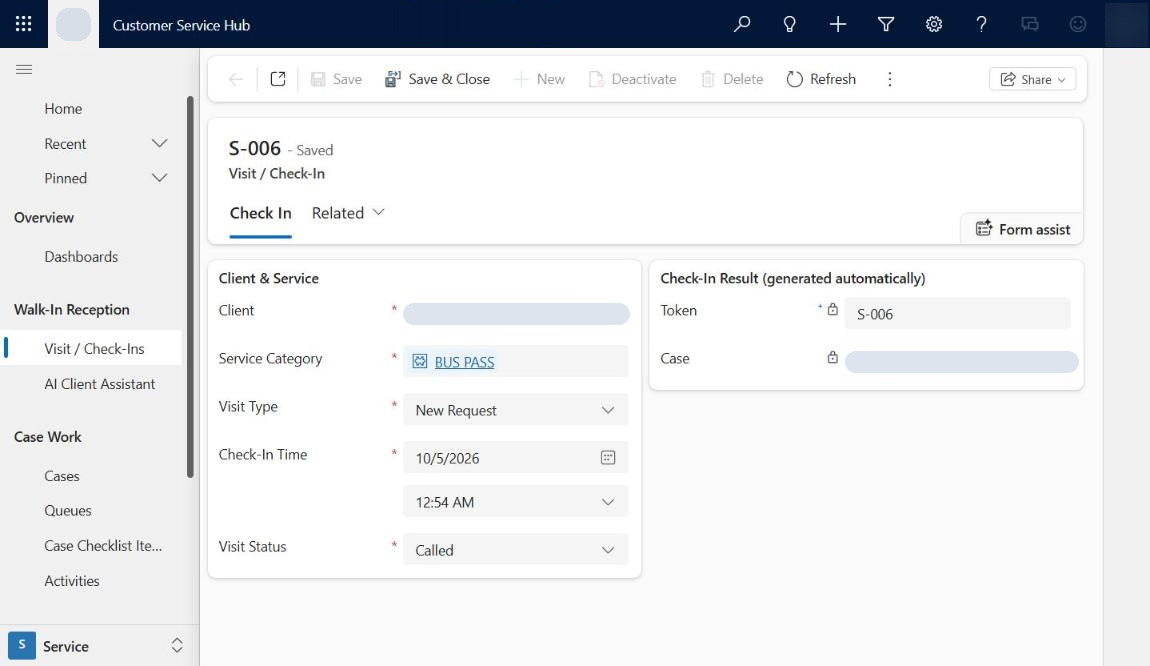 A visit after check-in: the token and case are filled in automatically📍 Where to find it: Customer Service Hub → Walk-In Reception → Visit / Check-Ins → + New.
2. The lobby display
A Power Apps canvas app runs on the lobby screen and refreshes every few seconds. When a new token is called, it shows a full-width NOW CALLING popup with the token and desk number and plays a voice announcement, while the rest of the screen shows who is waiting for each service.
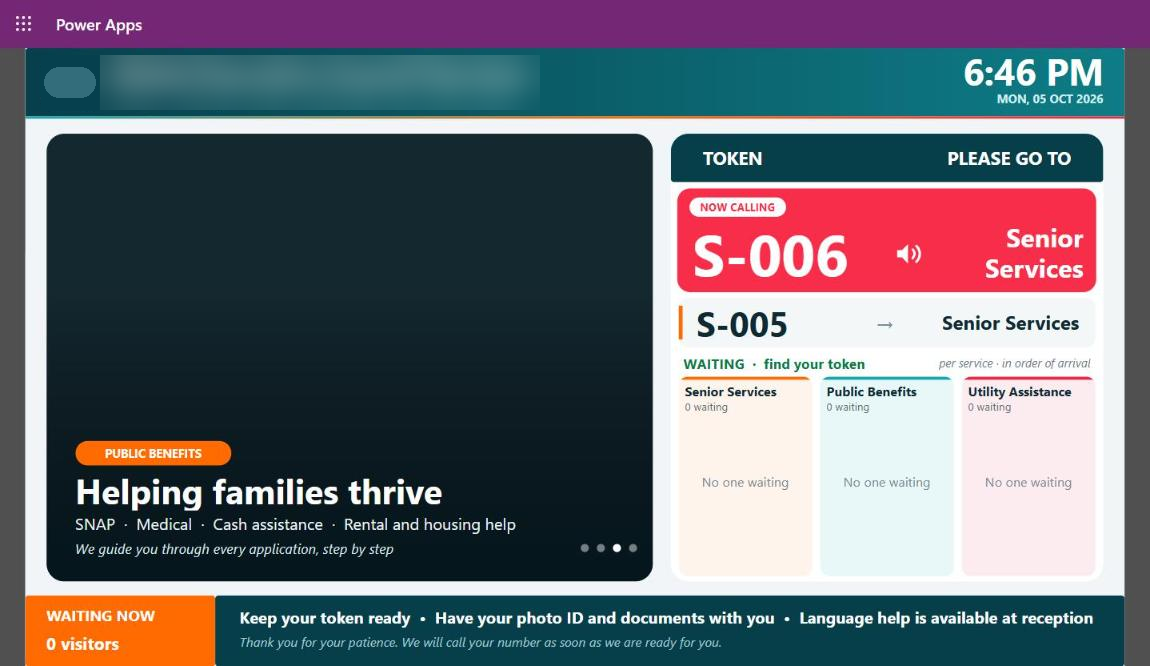 The lobby screen announcing token S-006, with the waiting list per service
3. Call next visitor
Caseworkers work from a dashboard with a single Call next visitor button. One click finds the oldest waiting token across all of that caseworker's queues, marks it as called, records the wait time, assigns the case to the caseworker and opens it on their screen. If no one is waiting, they see a clear “No visitors are waiting” message.
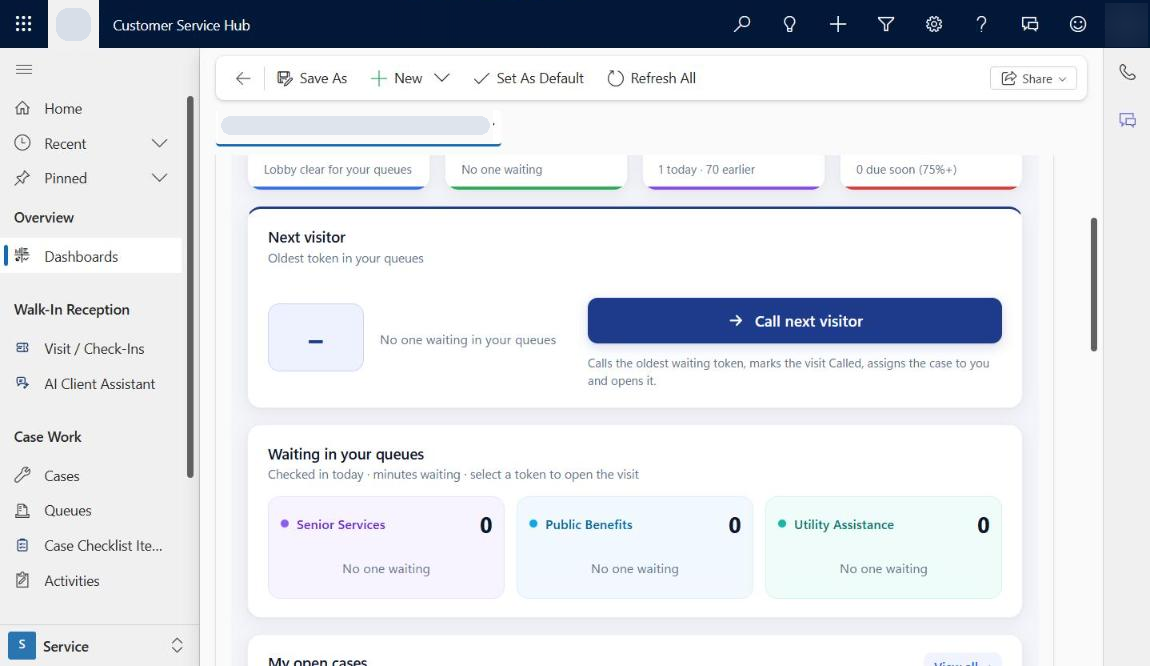 The caseworker dashboard with the Next visitor card and the waiting tokens per queueDesign choice: Calling from all of a caseworker's queues in one step, rather than queue by queue, guarantees that one click always calls exactly one visitor.
4. Keeping visit, case and queue in step
- Service start and end times are stamped automatically, and the visit closes when it is completed, marked as a no-show or cancelled.
- When the case status, stage or owner changes, the visit and the queue item update to match.
- If a caseworker picks a walk-in case straight from the queue, the result is the same as using the button.
- The current process stage is copied to the case for reporting, and document reminders start when a case reaches Docs Pending.
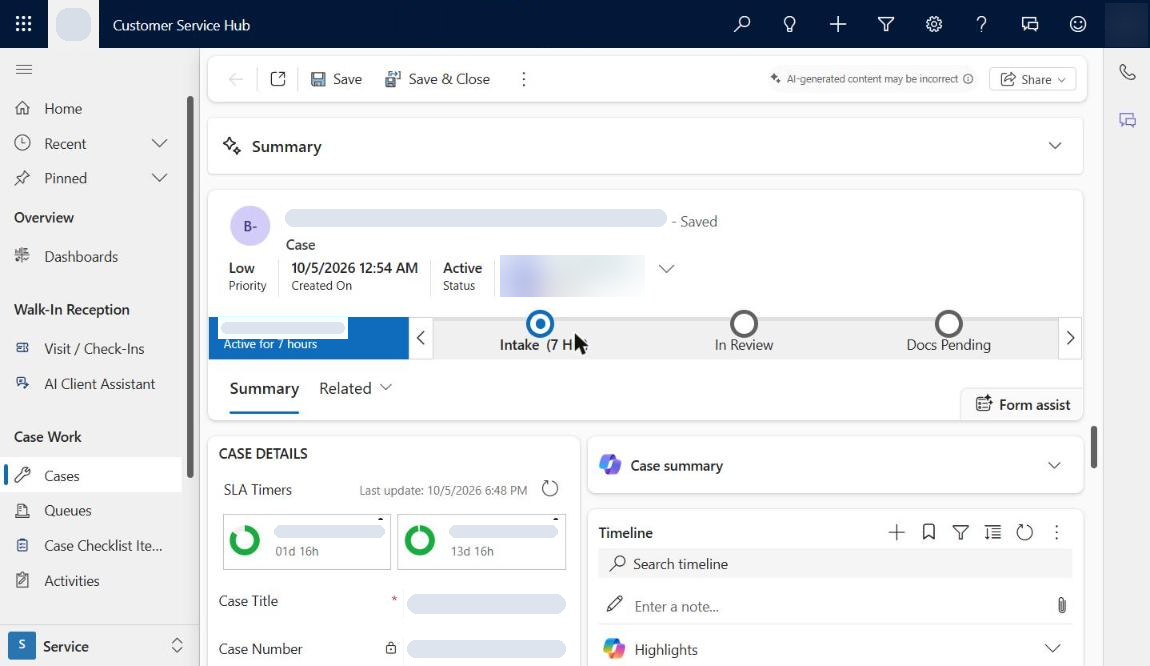 A walk-in case at Intake, owned by the caseworker who called the token
5. Nightly cleanup and supervisor view
Every night the token counters reset, and visits left waiting from the previous day are closed as no-shows. The case itself stays open for follow-up. Supervisors watch the whole operation in real time: who is waiting now, the longest and average waits, open cases and SLA status.
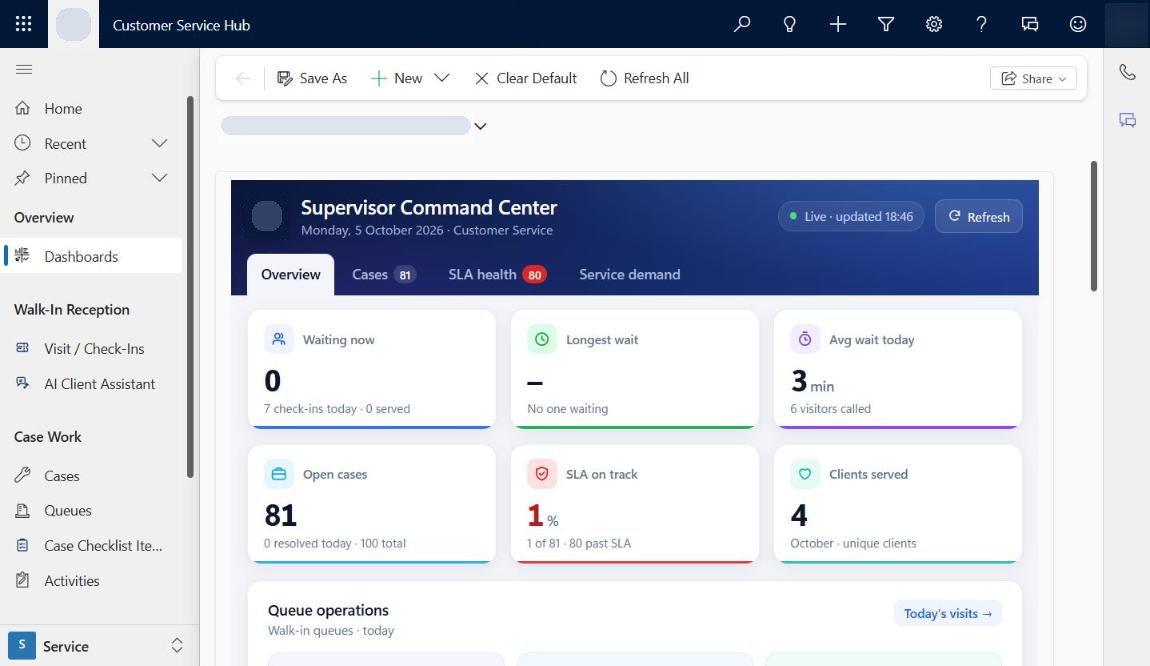 The supervisor command center
05How to implement Teams telephony: the setup
Telephony uses Microsoft's own components end to end: a Teams Phone number for the public line, the Dynamics 365 voice channel to route it, and the Teams dialer for direct calls.
| Component | How it is set up |
|---|---|
| Public service number | A geographic number on a Teams resource account, imported in Copilot Service admin center → Channels → Phone numbers, with inbound and outbound calling enabled |
| Voice workstream | A dedicated voice workstream with the number attached, routing calls to programme voice queues such as Senior Services |
| Agents | Caseworkers are members of the voice queues and set their presence to Available in Copilot Service workspace |
| Recording and transcript | Turned on for the workstream, so every call to the service number keeps a transcript |
| Direct calls | The Teams dialer (Calls panel) is enabled in Customer Service Hub and Copilot Service workspace, so calls to a caseworker's own Teams number ring inside Dynamics 365 |
| Operating hours | 24×7 for the proof of concept; production service hours to be confirmed |
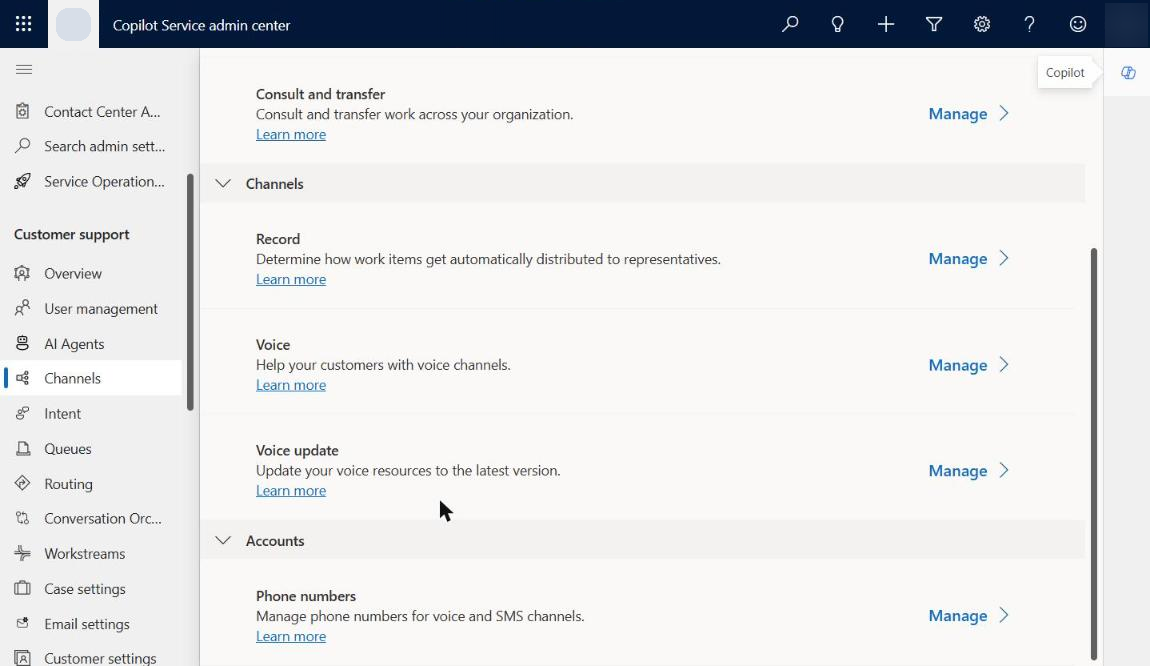 Channels in Copilot Service admin center: Voice and Phone numbers
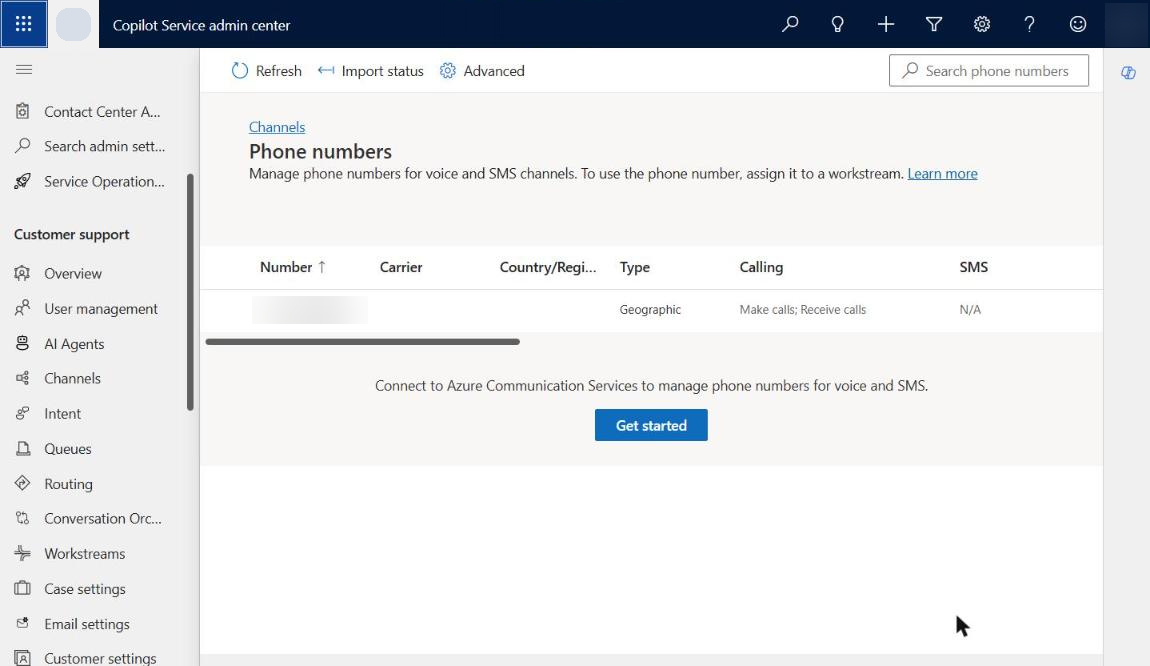 The service number in Phone numbers, set to make and receive calls (number hidden)
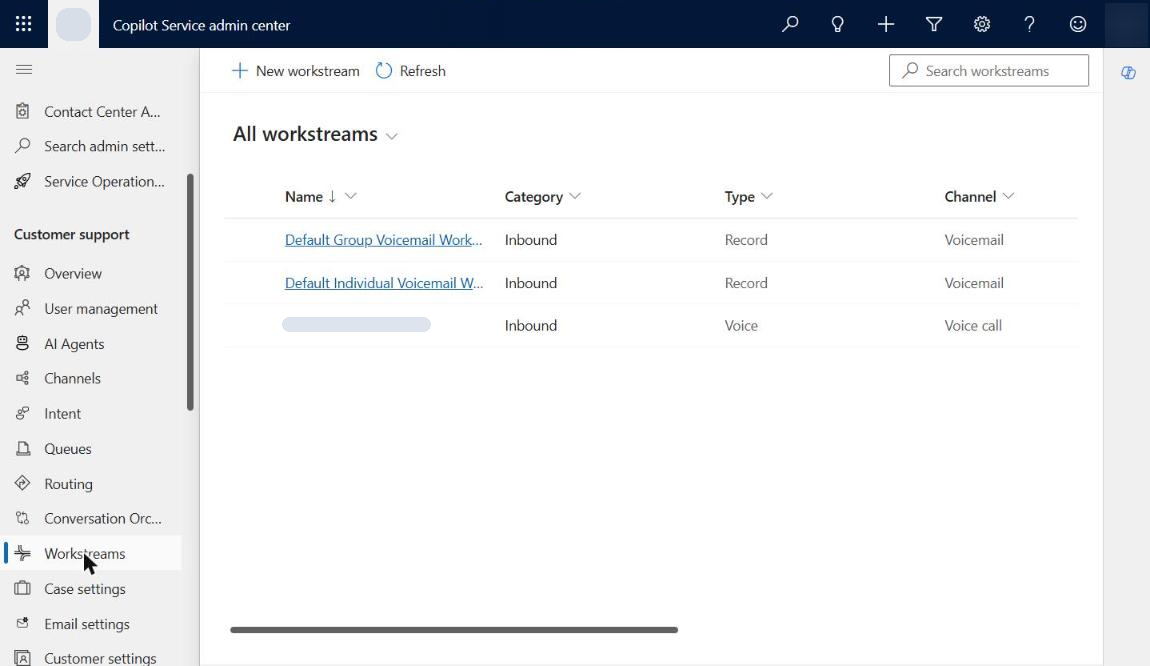 The voice workstream that routes calls to the voice queues
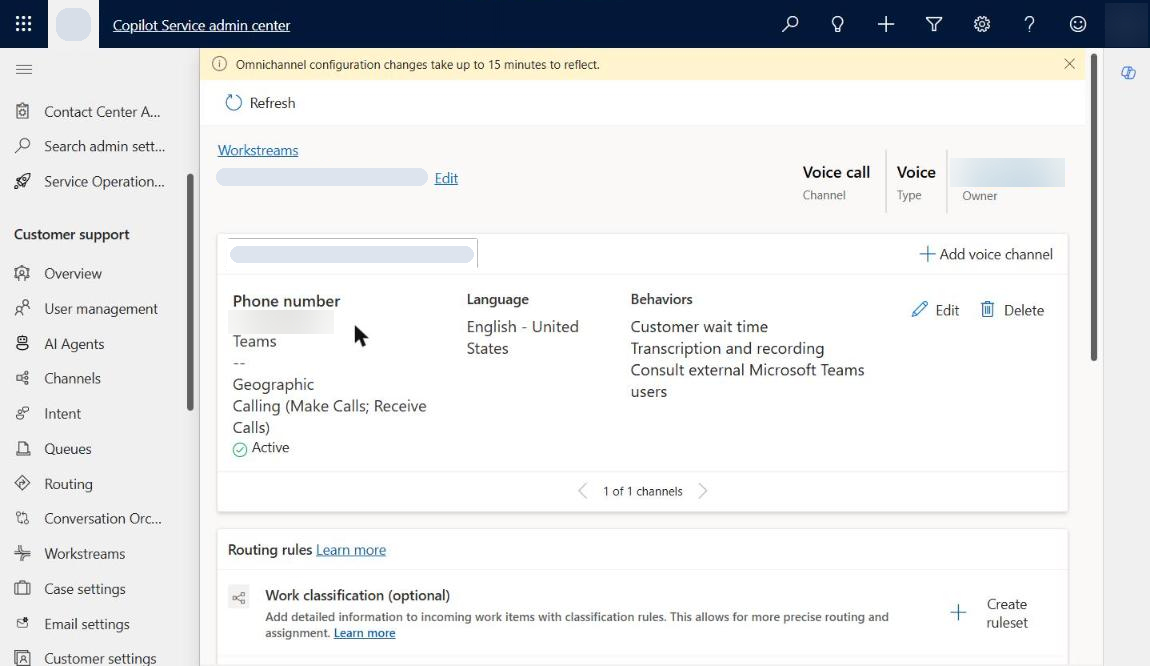 Inside the voice workstream: number, language, wait time, transcription and recording (details hidden)
To test, dial the service line from any Teams account. The available agent receives a voice call request in Copilot Service workspace with Accept and Reject options.
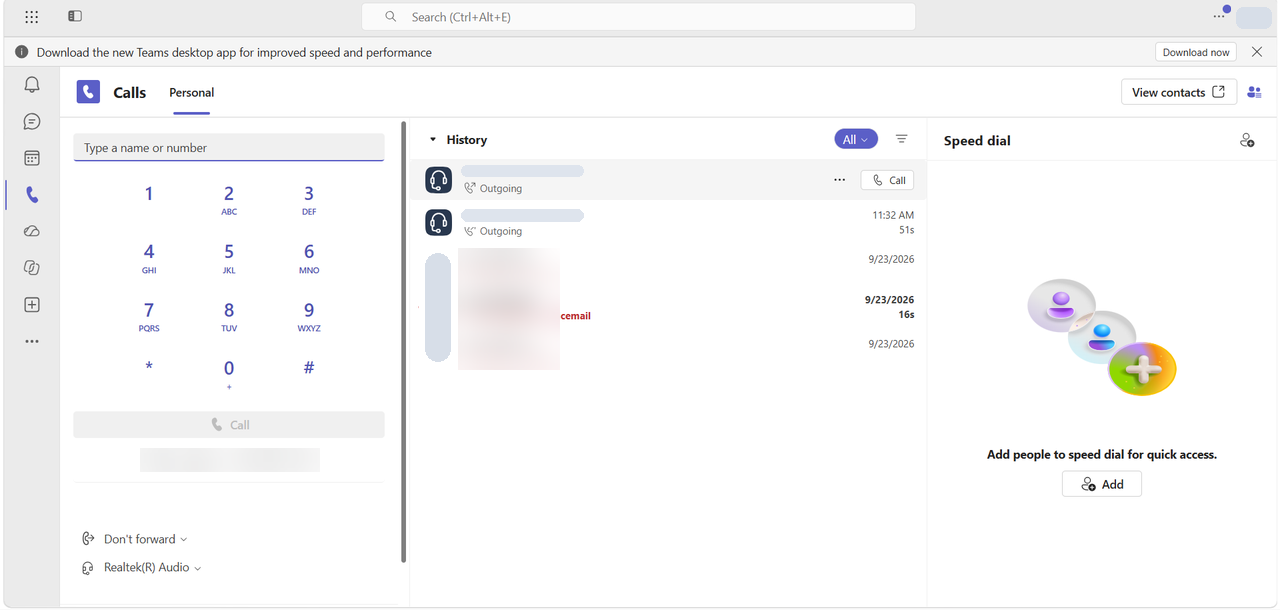 Dialling the service line from Teams (caller's number hidden)
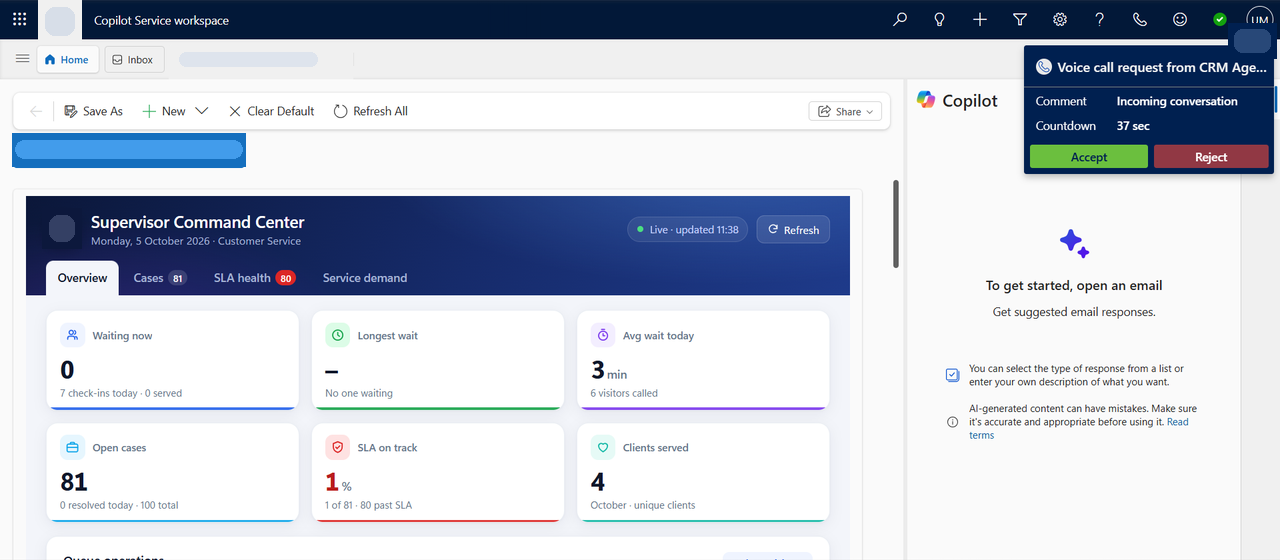 The voice call request in Copilot Service workspace
06How we implemented the telephony
The two routes store calls differently: a call to the service number becomes a Conversation with a transcript, while a direct Teams call becomes a standard Phone Call activity. We automated each one around a single rule: link automatically when there is exactly one match, and let the agent decide when there are several.
1. Identifying callers on the service number
Calls from real phone numbers are matched to contacts by number. Teams callers arrive with a name rather than a number, so we match them to their user account and then to the contact with the same email address. If that contact has exactly one open case, the conversation is linked to it, so the call and its transcript land on the case timeline. The agent's screen refreshes automatically as soon as the customer and case are identified.
2. Linking direct Teams calls to the client
A direct call to a caseworker rings in the Calls panel inside Customer Service Hub, whatever page the agent is on. When the call is logged, the caller is replaced with the client's contact record and the call is linked to their open case.
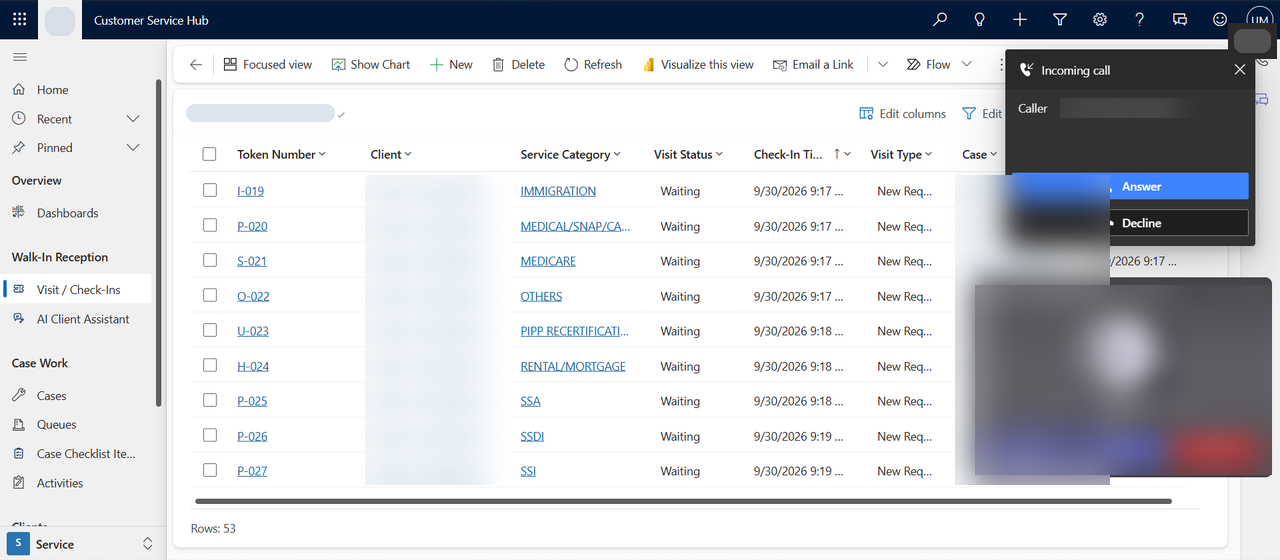 An incoming direct Teams call in Customer Service Hub (names hidden)
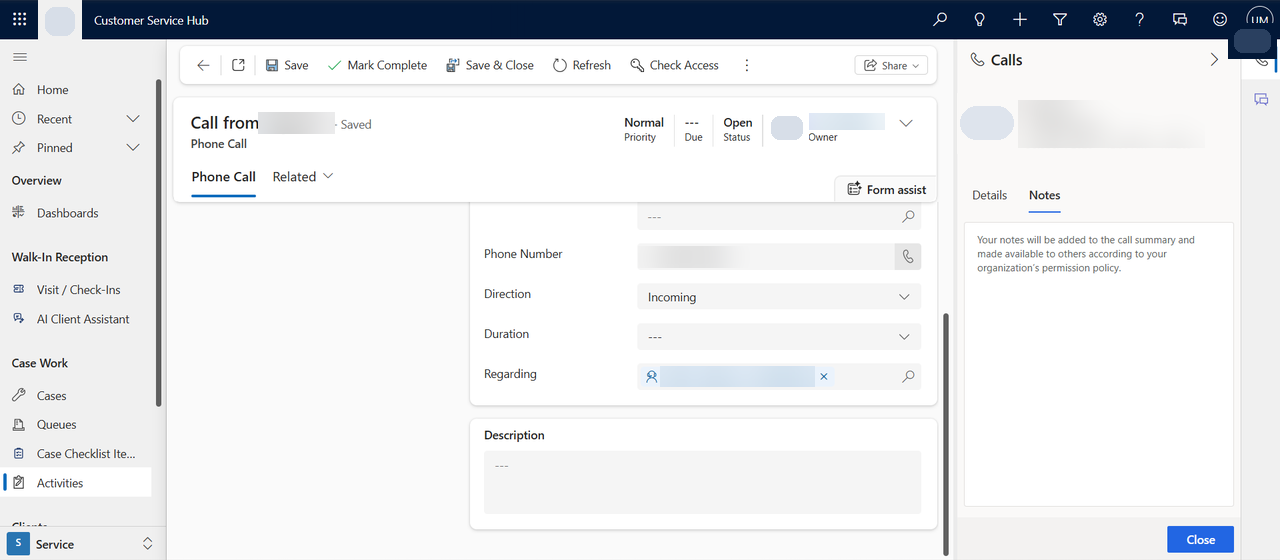 The phone call record, linked to the client's open case (personal details hidden)
3. Saving the agent's notes on the case
During the call the agent types notes in the Calls panel. Shortly after the call ends, the notes are copied onto the call record and the call is marked complete on the case timeline. Calls with no case, or with several possible cases, stay open so the agent can choose the right case with one click.
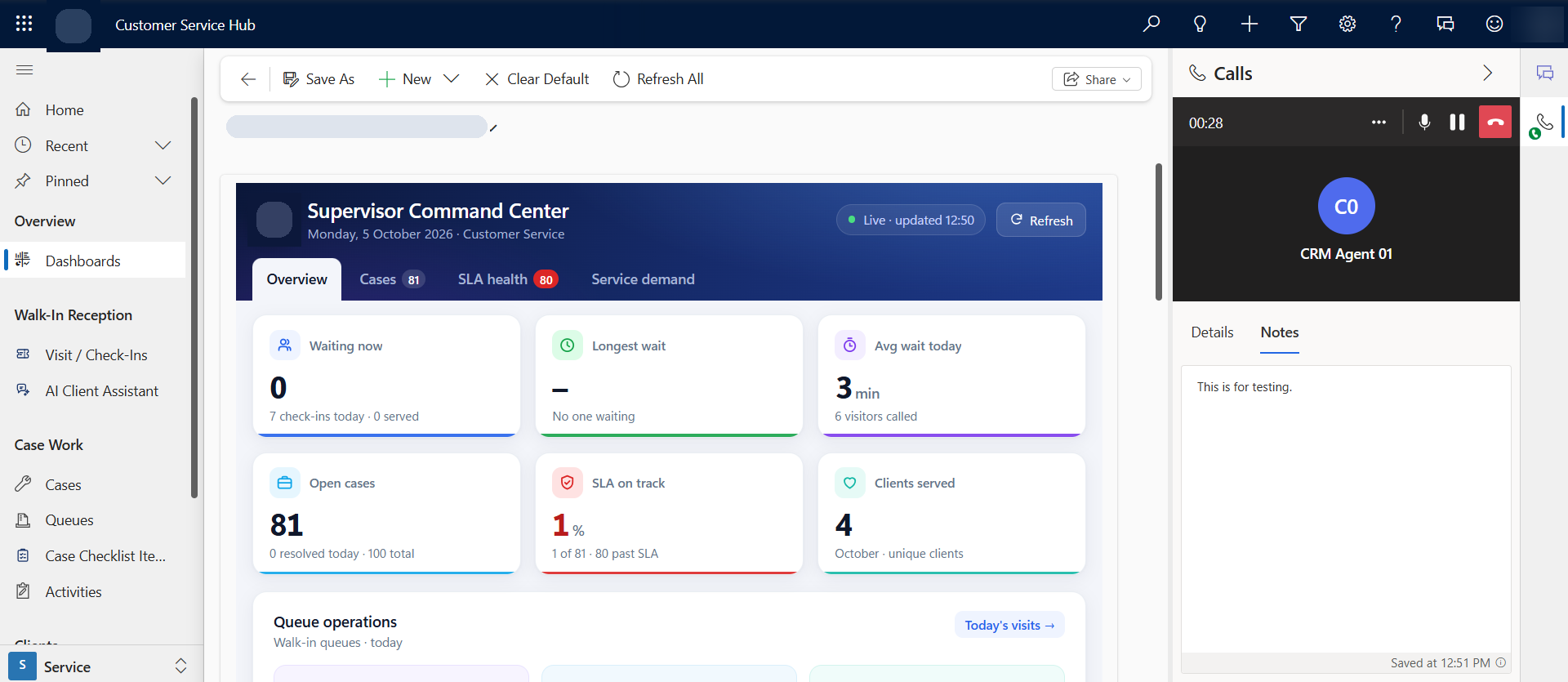 A direct Teams call in the Calls panel, with the agent's notes
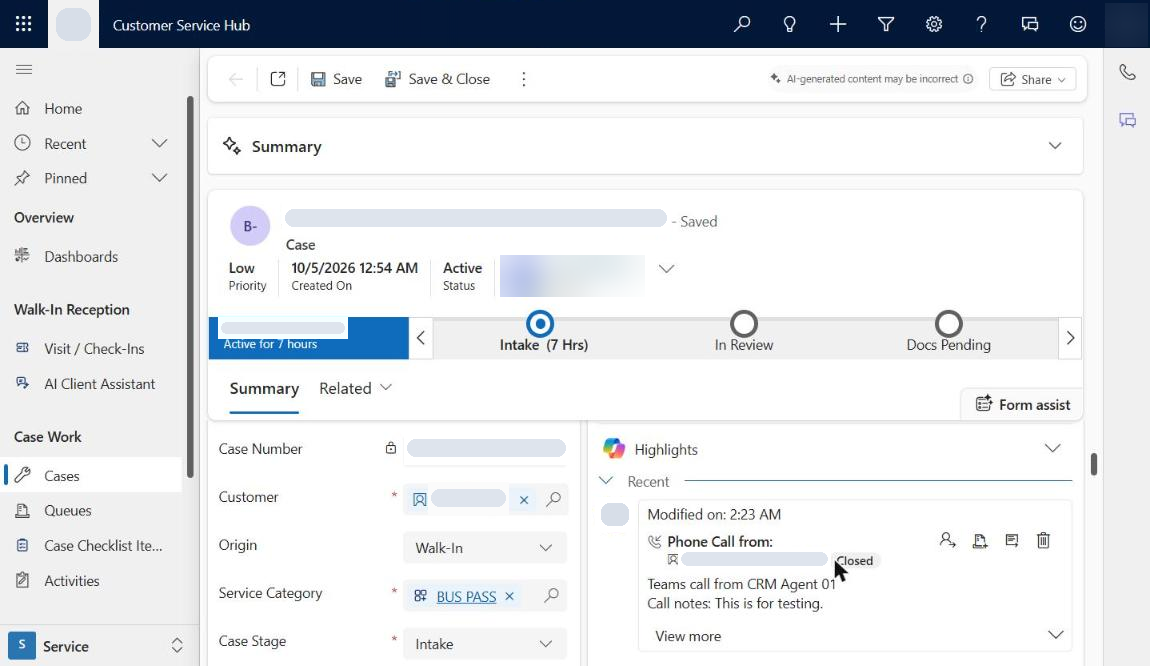 The completed phone call on the case timeline, with the notes copied
4. Creating a case from a call
For a brand-new request, the agent uses Convert To → Case on the phone call. The new case is automatically set to origin Phone and stage Intake, and once the agent picks the service category it receives the right title, document checklist, queue and priority.
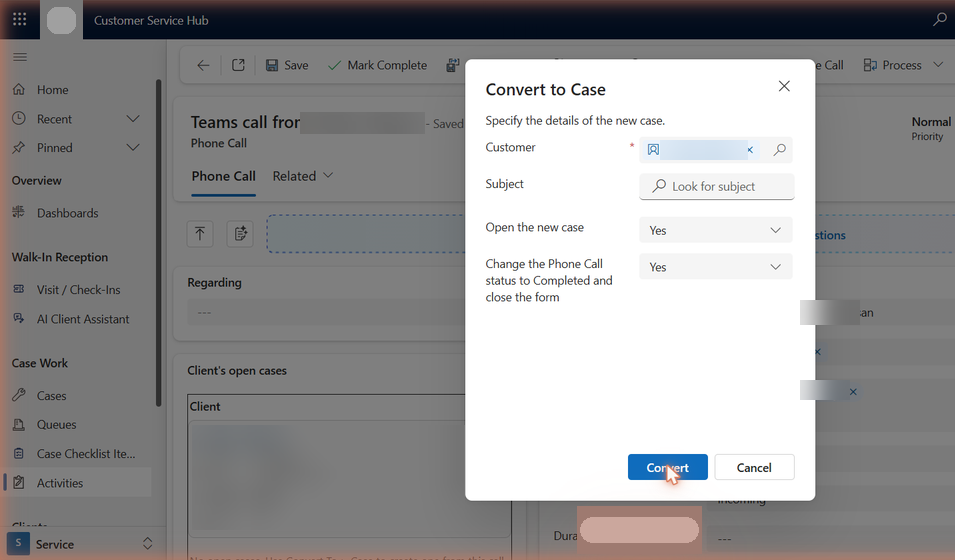 The Convert to Case dialog on a phone call (customer hidden)🎯 Result: Every call to the service number appears on the case timeline as a closed voice call with the full transcript underneath, and it also shows in the agent's My work items in Copilot Service workspace.
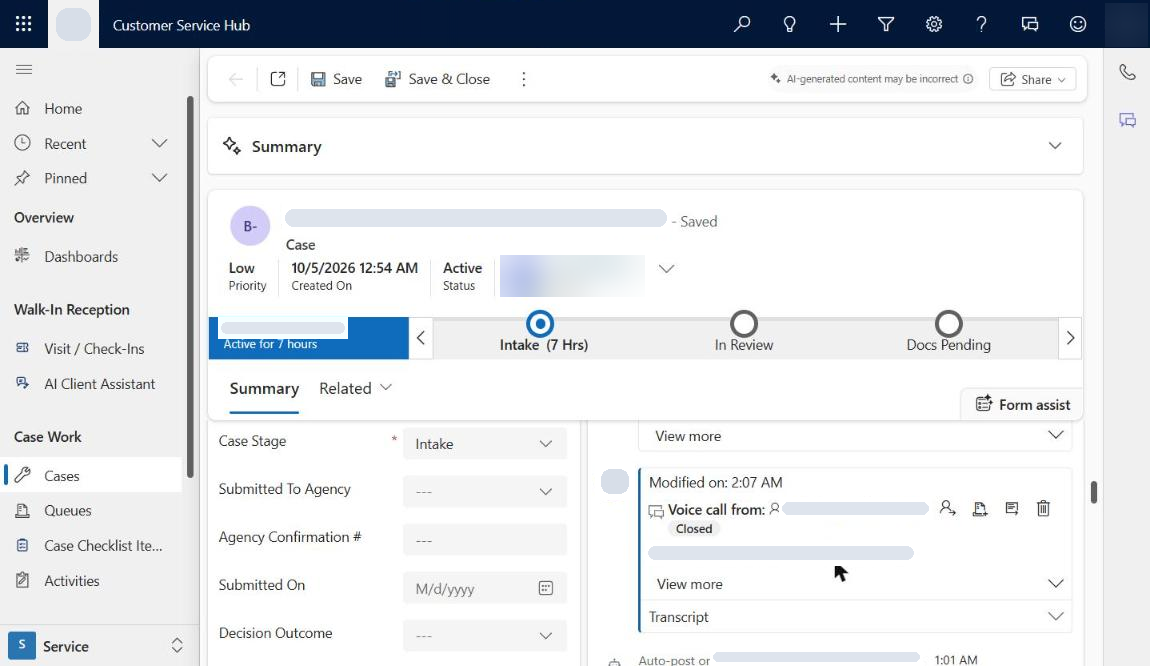 The voice call and transcript on the case timeline
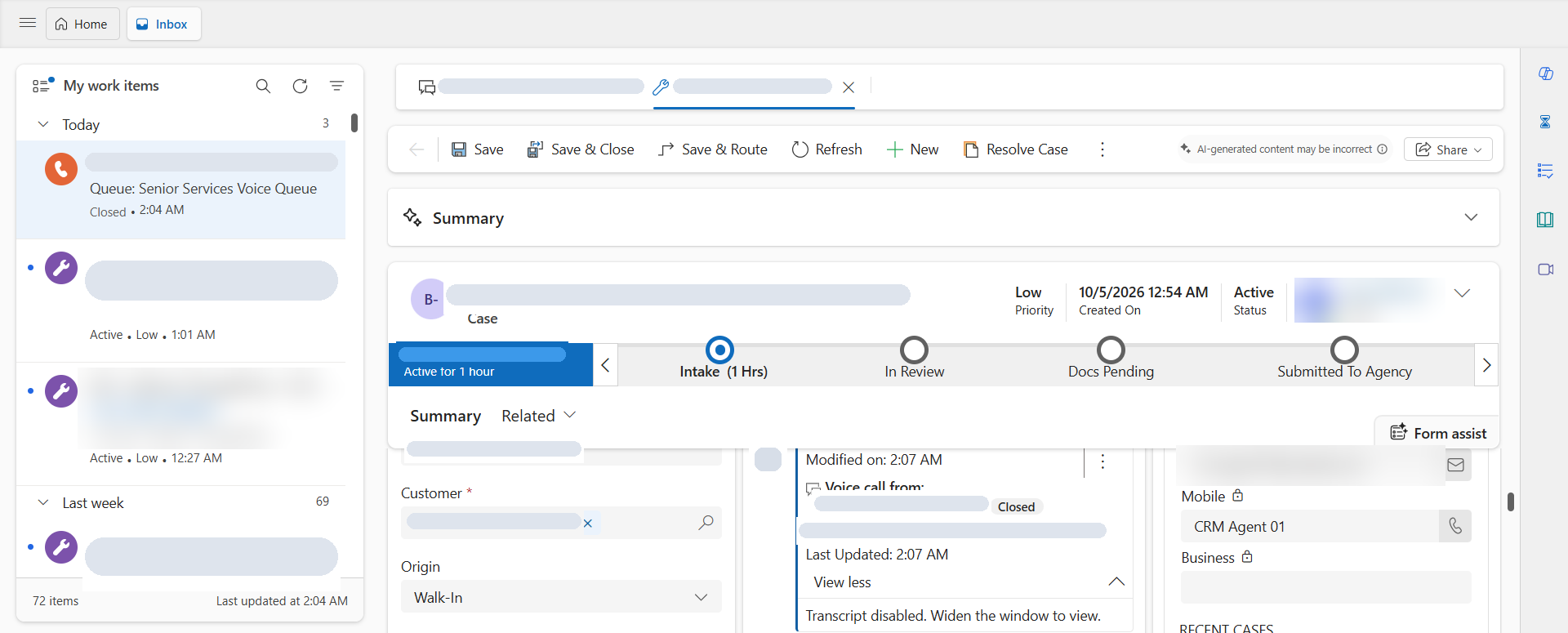 Copilot Service workspace: the closed voice conversation in My work items and on the case (personal details hidden)
07What the agency gets
Beyond the technology, the solution changes the day-to-day experience for clients, caseworkers and supervisors:
🧾One record per clientEvery visit, call, note, transcript and document request sits on the same case — no duplicates, no hunting across systems.⚡One-click serviceCaseworkers call the next visitor with a single button; the case opens already assigned to them.📣A calmer lobbyClients see their token, their place in line and a clear announcement when it is their turn.📞Calls that file themselvesKnown callers are matched and linked to their case automatically, with notes or transcripts saved.📊Real-time oversightSupervisors see waiting clients, wait times, open cases and SLA status as it happens.🧩Built to growStandard platform features and central settings make it easy to add services, queues or offices.08Implementation roadmap
If you are planning a similar solution, this is the order we recommend:
1Model the data: visits, service categories, document checklists and their link to cases.2Set up queues and the case process: one queue per programme area and a clear set of case stages.3Centralise settings: organisation details, time zone and contact numbers in one place.4Automate check-in: tokens, case creation or reuse, queueing and the welcome email.5Build the lobby display and the Call next visitor experience for caseworkers.6Configure Teams Phone: the service number, voice workstream, voice queues, recording and the Teams dialer.7Link calls to clients and cases automatically, leaving ambiguous matches to the agent.8Test every route with real data — real walk-ins and real Teams calls, not just desk checks.💡 Key lessonTest each route with a real call or a real walk-in. The issues that matter only show up with real data, so build time for live testing into the plan from day one.