Integrate Field Service
Integrate Field ServiceIntegrate Field Service
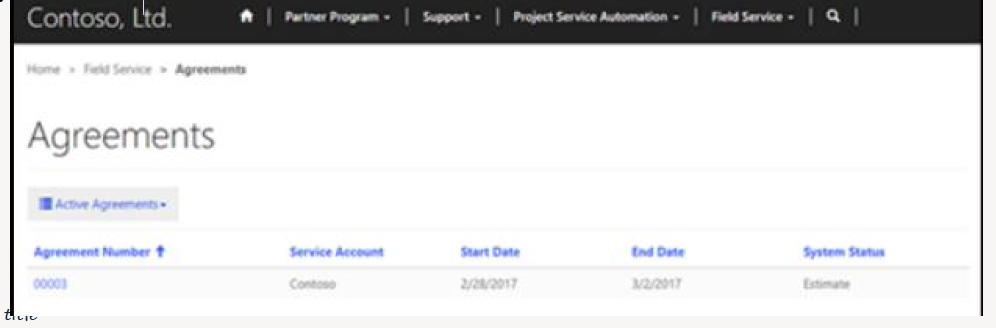
When the Field Service solution is installed on a Partner site, customers and partners can view Field Service data such as agreements, assets, work orders, and invoices.
Required Web Roles
- FS Customer Approver
- FS Customer Reviewer
View Agreements
How to Make an Agreement Visible
- Go to Field Service > Agreements
- Open an existing agreement or create a new agreement
- In Service Account, enter the customer’s account
- Check Expose to Customer
Portal Access Path
Sign in → Field Service → Agreements → All Agreements
Create or Edit Agreement for Portal Visibility
- Go to Dynamics 365 Field Service → Service Delivery → Agreements
- Open an agreement or click + New
- Set Service Account to the customer account
- Enable Expose to Customer
Customers can then sign in to the portal, navigate to Field Service → Agreements, set filter to All Agreements, and view full agreement details.
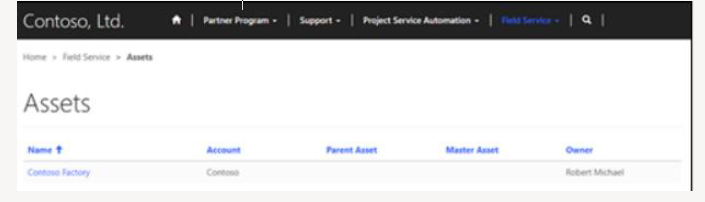
Viewing Assets on the Partner Site
Customers can view assets linked to their account when the asset is configured and the user has FS Customer Approver or FS Customer Reviewer role.
Make Asset Visible
- Go to Dynamics 365 Field Service → Service Delivery → Customer Assets
- Open or create asset
- Select customer in Account field
- Enable Expose to Customer
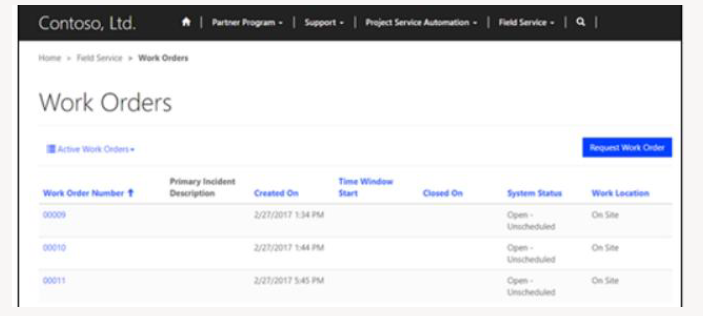
Viewing Work Orders
- Go to Field Service → Work Order & Schedule → Work Orders
- Open or create work order
- Select customer in Service Account
- Enable Expose to Customer
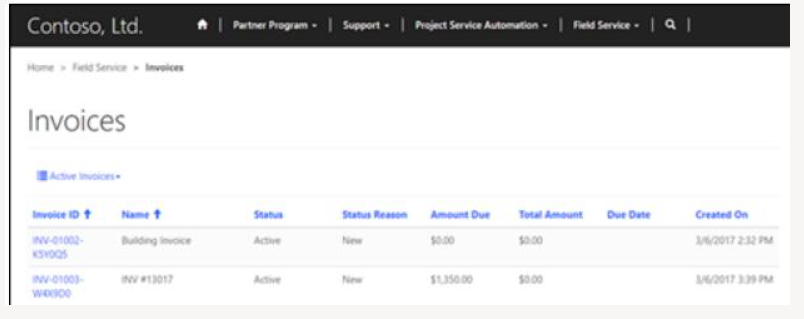
Viewing Field Service Invoices
- Go to Field Service → Service Delivery → Invoices
- Create or open invoice
- Ensure Invoice section is selected in dropdown
- Fill required details
- Enable Expose to Customer
Automatic Opportunity Assignment
Opportunities are assigned to preferred partners using ranking metrics.
Partner Ranking Metrics
| Metric | Description |
|---|---|
| Distance | Distance between partner and customer |
| Win rate | Percentage of opportunities won |
| Return rate | Percentage returned or lost |
| Feedback rate | Opportunities with customer feedback |
| Stall rate | Accepted but not progressed |
| Touch rate | Quick accept/decline rate |
| Average time to close | Days to close opportunities |
Available Weight Settings
| Metric | Setting Name | Range |
|---|---|---|
| Distance | distribution/weights/distance | 0 to –0.01 |
| Win rate | distribution/weights/winrate | 0 to 5 |
| Return rate | distribution/weights/returnrate | 0 to –5 |
| Feedback rate | distribution/weights/feedbackrate | 0 to 5 |
| Stall rate | distribution/weights/stallrate | 0 to –5 |
| Touch rate | distribution/weights/touchrate | 0 to 5 |
| Avg time to close | distribution/weights/avgtimetoclose | 0 to –0.5 |