Integrate Project Service Automation
Integrate Project Service AutomationIntegrate Project Service Automation
When the Project Service Automation (PSA) solution is installed on a Partner site (along with required dependencies), customers and partners gain access to PSA-related data such as projects, quotes, invoices, and bookable resources.
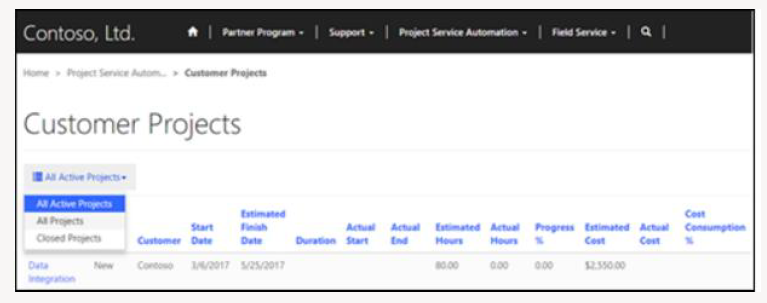
View Projects on the Partner Site
Customers can view
- Active projects
- Closed projects
- All projects linked to their organization
Partners can view
- Projects where a bookable resource from their organization is part of the project
Requirements
Web roles:
- PSA Customer Approver/Reviewer
- PSA Partner Approver/Reviewer
How to Access
- Sign in to the partner site
- Go to Customer Projects
- Choose Active, Closed, or All Projects
View and Approve Project Quotes
Customers can view and approve quotes associated with their account.
How to Access
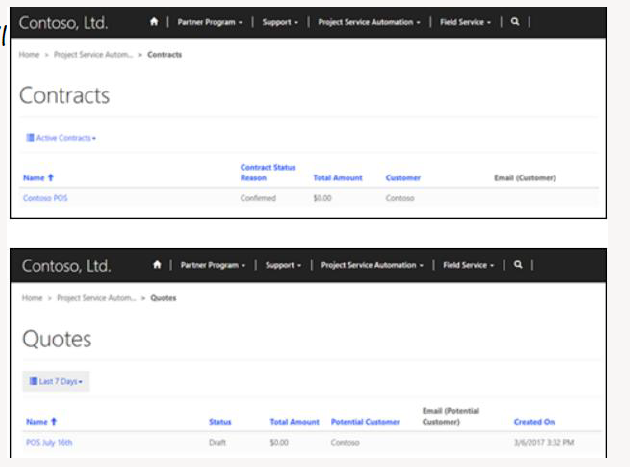
- Sign in → Project Service Automation → Quotes
- Set filter to Last 7 Days
- View pending quotes
- Select a quote to see details
- Use Approve Quote or Reject Quote
View Project Invoices
Customers can see invoices only if:
- The invoice is marked Visible to customer
How to Access
- Sign in → Project Service Automation → Invoices
- View invoice summary list
- Select an invoice to see full details
View Project Contracts and Order Forms
Customers can see contracts and orders only if:
- The contract is marked Visible to customer
How to Access
- Sign in → Project Service Automation → Contracts
- View list of contracts
- Select a contract to open details
View Confirmed Bookable Resources
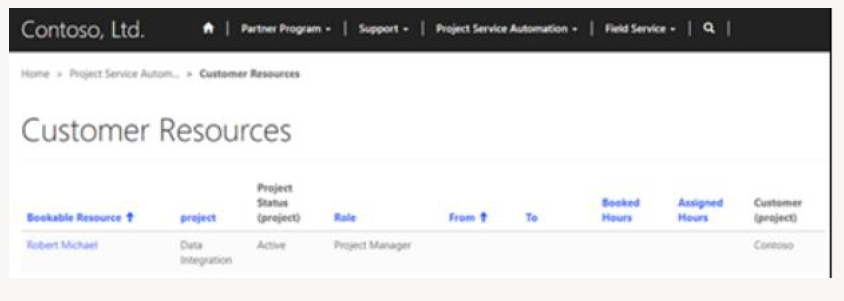
Both customers and partners can view resources assigned to their projects.
How to Access
- Sign in → Project Service Automation → Customer Resources
- View assigned resources including:
- Role
- Booked hours
- Assigned tasks
 Tip: Ensure correct PSA web roles are assigned to users to enable project, quote,
invoice, contract, and resource visibility on the partner portal.
Tip: Ensure correct PSA web roles are assigned to users to enable project, quote,
invoice, contract, and resource visibility on the partner portal.