Manage cases in Power Pages
Manage Cases in Power PagesManage Cases in Power Pages
Cases help organizations track and resolve customer issues. In Power Pages, customers can submit, view, update, and even close their own cases—reducing the need to contact support staff directly.
You can customize the case forms displayed on the site to control which fields users can view or edit.
Create Cases
- Sign in to your Power Pages site.
- Go to the Support section.
- A list of all cases you have logged will appear.
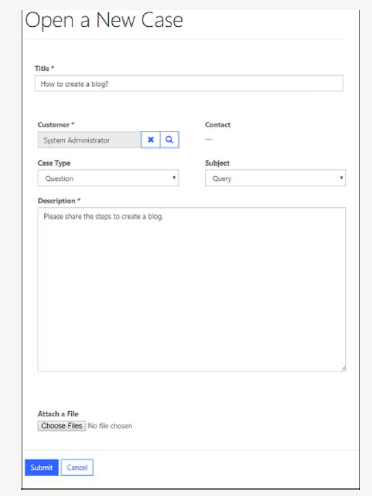
- Select Open a New Case.
- Fill in the required details.
- Select Submit.
Default Error Message
If you select a contact that does not belong to the selected account, the system displays the following default error:
Error:“The specified contact doesn't belong to the account selected as the customer…”
You can replace this message by creating a Content Snippet:
- Name: cases/unrelatedcontact
- Value: Your custom error message
Add Case Notes
Case notes allow customers to add comments or share additional information about their issue.
- Notes are visible to anyone who has access to the case.
- Notes can include attachments.
- After adding a note, select Update to save it.
Notes created inside Dynamics 365 are visible to customers only if the keyword “WEB” appears in the note text.
Close or Cancel a Case
Customers can manage the case status directly from the website:
- Close Case
- Cancel Case
The system asks for confirmation. When a case is closed or canceled, all related open activities are automatically closed.
If a customer feels their issue was not resolved properly, they can reopen a closed case.
Case Deflection
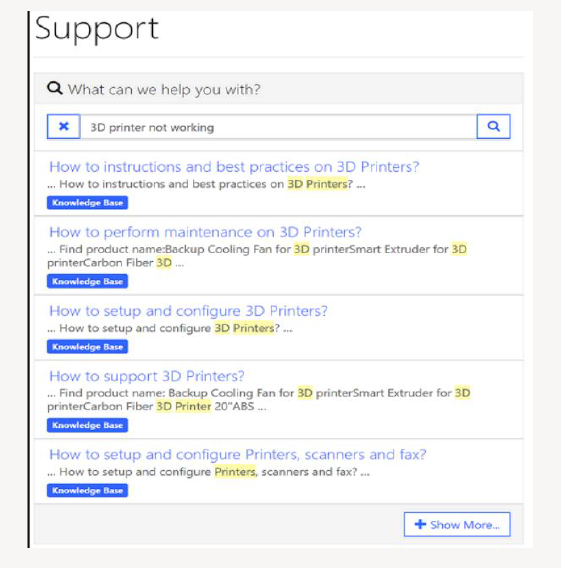
Case deflection encourages users to search for existing solutions before creating a new case.
How It Works
- User types their problem in a search box.
- The system displays helpful results such as:
- Blog posts
- Web pages
- Forum threads
- Issues
- Resolved cases
- Only public fields from resolved cases are shown.
- Users can ignore the results and continue creating a case.
Disable Case Deflection
To disable case deflection, create the following site setting:
- Name: HelpDesk/CaseDeflection/Enabled
- Value: false