Manage knowledge articles by using content access levels
Manage Knowledge Articles Using Content Access LevelsManage Knowledge Articles Using Content Access Levels
Content Access Levels
- Provide additional access control beyond Web Roles
- Ensure the right content reaches the right audience
- Help create structured learning paths and hide irrelevant content
- Default levels include Default, Registered Users, and Premium Users
- Custom levels can be created and assigned to Accounts, Contacts, or Web Roles
How Content Access Levels Work
- New knowledge articles automatically use the Default access level
- Access levels are copied when an article is translated or versioned
- Website search and navigation display articles based on the user’s access level
- If a user lacks permission, an Article Unavailable message is shown
- Site setting must be enabled: KnowledgeManagement/ContentAccessLevel/Enabled = true
Create Content Access Levels
- Go to Power Pages → Security → Content Access Levels
- Select New and enter a Name and Description
- Mark as Default Access Level if required
- Select Save
Assign Content Access Levels to Articles (Customer Service Hub)
- Open the Customer Service Hub app in App Designer.
- Under Table View, select the Forms tile for the Knowledge Article entity.
- Select Portal Knowledge Article for Interactive Experience.
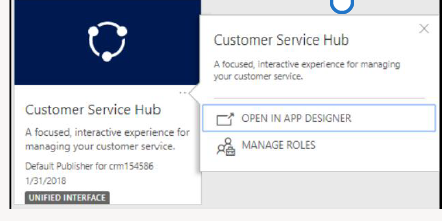
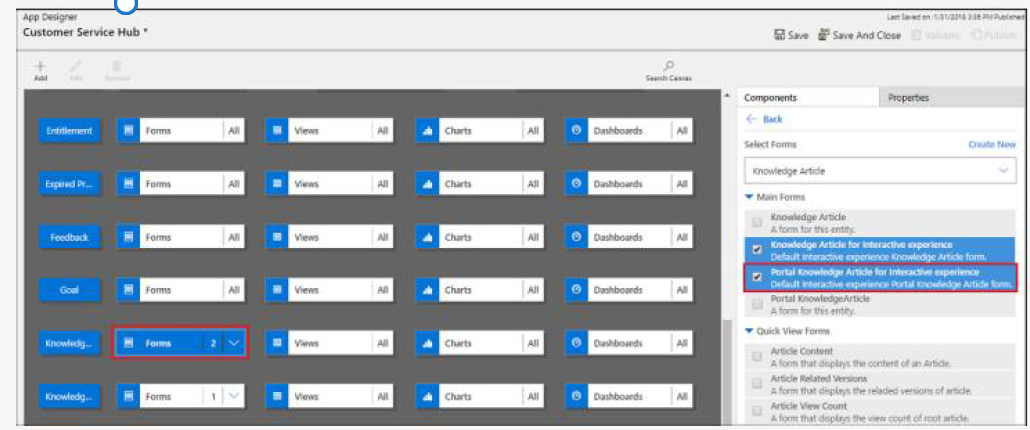
- Save and publish the changes.
- Open Customer Service Hub.
- Navigate to the knowledge article you want to update.
- Select Portal Knowledge Article for Interactive Experience.
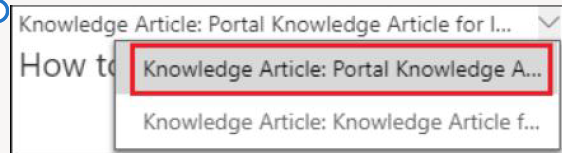 >
>
- On the Summary tab, under Related information, select Content Access Levels (lock icon).
- Select Add Existing Content Access Level.
- Select the content access level from the lookup.
- Select Add.
Assign Content Access Levels to Articles (Power Pages)
- Open the Power Pages app.
- Go to Portals → Knowledge Article and open the article.
- On the Summary tab, under Related information, select Content Access Levels (lock icon).
- Select Add Existing Content Access Level.
- Select the content access level.
- Select Add.
Interactive Service Hub
- Open the Interactive Service Hub.
- Select or create a knowledge article.
- Select Summary above the progress bar.
- Under Related Information, select the lock icon.
- Add or remove Content Access Levels as required.
Assign Content Access Levels to Users
- Go to Power Pages → Portals → Security → Contacts
- Open a contact and locate the Content Access Levels section
- Add or remove access levels
Users can inherit content access levels from:
- Web Roles
- Parent Contact
- Account