Purchase Order Automation: End-to-End Architecture Using Power Automate, Azure, and Sage ERP
1. Introduction — What Problem Are We Solving?
- Manual PO processing is slow, error-prone, and resource-intensive.
- Organizations lose time re-keying data from PDFs into ERP systems.
- Mismatches between POs and quotations cause revenue leakage and disputes.
- This solution automates the entire journey — from email receipt to Sage ERP Sales Order creation — using Microsoft and Azure technologies.
- Target: Process a PO in under 2 minutes, end-to-end.
2. Solution Architecture Overview
The pipeline has five major stages, each handled by a specific technology:
| Stage | Technology |
|---|---|
| Email Intake & Trigger | Power Automate Cloud Flow |
| Document Storage | SharePoint via D365 Document Management |
| AI Data Extraction | Azure Function + Azure Document Intelligence |
| Quotation Matching | Azure Function + MySQL API |
| ERP Order Creation | Power Automate Desktop + Sage Visual Integrator |
Key design principle: No system directly writes to another system's database. All integrations go through approved interfaces and APIs.
3. Stage 1 — Email Intake & Trigger (Power Automate Cloud Flow)
This is where the process starts. Instead of a custom CRM plugin, a Power Automate Cloud Flow monitors Dynamics 365 for incoming emails.
How it works:
- The flow is triggered when a new Email Activity is created in Dynamics 365 Customer Service.
- The flow inspects the email record and checks all trigger conditions before proceeding.
Trigger Conditions the Flow Validates:
- Email Activity exists in D365.
- At least one attachment is present.
- Attachment type is PDF (MIME type or file extension check).
- Sender email address is matched to a known Account record in D365.
- Optionally, subject/body contains PO-related keywords (configurable).
Flow Actions After Trigger:
- Validates that no duplicate processing is occurring (idempotency check using Correlation ID lookup).
- Retrieves the SharePoint Document URL and Document ID from D365's document management integration.
- Collects metadata: Account ID, Contact ID (if available), Email Activity ID.
- Generates a unique Correlation ID for end-to-end traceability.
- Sends a structured JSON payload via HTTP POST to the Azure Function API.
Key Technical Points for Blog:
- Power Automate's Dataverse connector is used to query Email Activity records and related entities.
- Flow runs with a service account to ensure reliability.
- The Correlation ID ties every log, record, and system event back to one transaction.
- No PDF binary content is passed at this stage — only document references (URLs and IDs), keeping the payload lightweight.
- The flow uses asynchronous execution to avoid blocking D365 performance.
4. Stage 2 — Document Retrieval & AI Extraction (Azure Function)
The Azure Function is the brain of the solution — it orchestrates everything from document retrieval to structured data output.
Step-by-step processing:
Step A — Authenticate & Download from SharePoint
- Azure Function authenticates to SharePoint using Azure AD App Registration (OAuth 2.0 client credentials flow).
- Uses the SharePoint Document URL from the payload to securely download the PO PDF.
- No credentials are hardcoded — secrets stored in Azure Key Vault.
Step B — Send to Azure Document Intelligence
- PDF is submitted to Azure Document Intelligence (formerly Form Recognizer).
- A custom-trained model (or the prebuilt invoice/document model) processes the PDF.
- Returns structured JSON containing field-level extractions with confidence scores.
Data Extracted:
Header-Level:
- PO Number
- PO Date
- Customer Name
- Quote Reference (if present)
- Currency
- Total Amount
Line-Level (per line item):
- SKU / Item Code
- Description
- Quantity
- Unit Price
- Line Total
- Required Delivery Date
Step C — Confidence Threshold Enforcement
| Confidence Level | Action |
|---|---|
| ≥ 95% | Auto-proceed |
| 75–94% | Flag for internal review |
| <75% | Mark as extraction failure |
Key Technical Points for Blog:
- Azure Document Intelligence supports both prebuilt and custom models — custom models should be trained on real PO samples for best accuracy.
- Confidence scoring is field-level, not just document-level — each extracted field carries its own score.
- Low-confidence records are not discarded — they are routed for human review, preserving every PO.
- This stage decouples document intelligence from business logic — the function just extracts; matching happens separately.
5. Stage 3 — Quotation Retrieval (MySQL API)
Once the PO is extracted, the system retrieves matching quotation data for comparison.
How it works:
- Azure Function calls a secure MySQL API (REST endpoint) provided by the client.
- The API queries the CPQ/quotation database and returns relevant records.
Request Parameters Sent:
- Customer Account ID (from D365 / Sage customer number)
- Contact ID (if available)
- Date range (configurable — default last 3–6 months)
- Quotation Number (if extracted from PO)
Response Data Expected:
Quotation Header:
- Quotation ID (unique per revision)
- Quotation Number
- Customer ID
- Status (latest approved revision)
- Currency
- Total Amount
- Validity Period
Quotation Line Items:
- SKU / Item Code
- Description
- Quantity (at requested quantity tier)
- Unit Price (with price break logic applied)
- Line Total
Key Technical Points for Blog:
- The MySQL API abstracts the CPQ database — the Azure Function never touches the DB directly.
- Price break logic must be handled server-side by the API.
- Date-range filtering ensures stale quotations don't cause false matches.
- API must return only approved, latest-revision quotations.
6. Stage 4 — Matching Engine (Core Business Logic)
This is the most technically complex stage. The matching engine is deterministic and explainable — every decision can be traced back to specific rules and scores.
Step 1 — Exact Match
- PO contains a quotation number.
- Quotation number found in API response.
- Customer ID matches.
- Total amount within agreed tolerance (e.g., ±2–5%).
If all pass → Verified = TRUE, proceed directly to ERP.
Step 2 — Weighted Similarity Match
A scoring model is applied across multiple dimensions:
| Dimension | Weight |
|---|---|
| Customer ID | Mandatory (disqualifier if fails) |
| SKU Match | 40% |
| Description Similarity | 25% |
| Amount Similarity | 20% |
| Quantity Similarity | 15% |
Similarity Logic:
- SKU: Exact match on item codes.
- Description: NLP-based cosine similarity on item descriptions.
- Amount: Compares total amounts with tolerance.
- Quantity: Compares quantities with tolerance.
Score Classification:
| Score | Classification |
|---|---|
| ≥ 95% | Verified |
| 76–94% | Suggested Match |
| < 75% | No Match |
Key Technical Points for Blog:
- Customer ID is a hard mandatory gate — if it fails, no score is even computed.
- Weighted scoring allows partial matches to still be acted upon, rather than rejecting all non-exact POs.
- Explainability is built in — each dimension score is logged separately, so ERP users know exactly why a PO was classified a certain way.
- Suggested Match and No Match cases are flagged in D365 for human review — automation never silently discards a PO.
- Thresholds are configurable and can be tuned during UAT without code changes.
7. Stage 5 — Sage ERP Sales Order Creation
Verified or Suggested Match POs proceed to Sales Order creation via a UI automation path — not a direct API or database write.
Why Sage Visual Integrator (SVI)?
- Sage does not expose a supported REST API for Sales Order creation in this configuration.
- SVI is the approved, governed interface — it runs Sage's own internal validation before writing records.
- This approach is future-proof and doesn't risk ERP data integrity.
Integration Flow:
-
Azure Function → Power Automate Cloud Flow
- Function prepares the validated Sales Order payload in JSON.
- Sends an HTTP trigger to a Power Automate Cloud Flow.
-
Power Automate Cloud → Power Automate Desktop
- Cloud flow calls a Desktop flow installed on a dedicated Virtual Machine.
- Desktop flow runs in unattended mode using a service account — no human interaction required.
-
Power Automate Desktop → Sage Visual Integrator
- Desktop flow launches SVI.
- Selects the predefined Sales Order import template.
- Maps and populates all required fields.
-
Visual Integrator Creates the Sales Order
- SVI runs its own internal validation.
- Creates the Sales Order in Draft/Hold state (configurable).
-
Sales Order Number Returned
- SVI outputs the generated Sales Order number.
- Desktop flow captures and passes it back through: Cloud Flow → Azure Function → D365 Case/Email Activity.
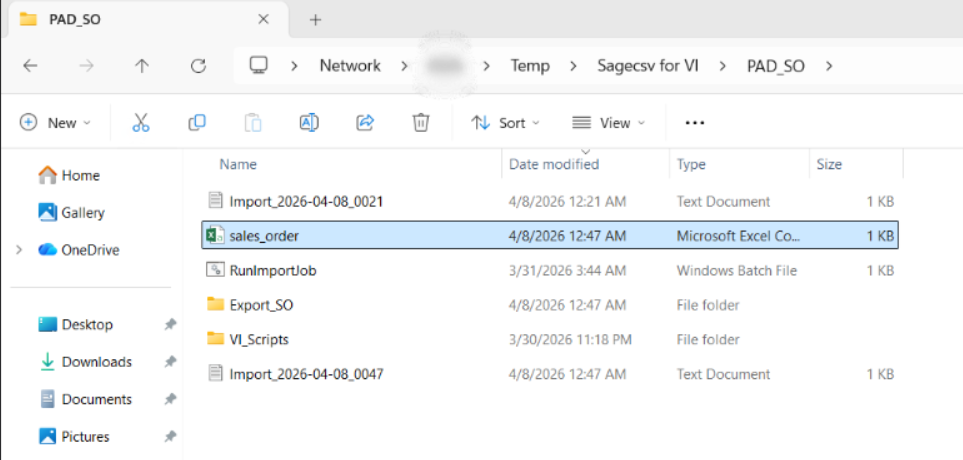
1.Working Directory for Sales Order Automation
This screenshot shows the main working directory used in the automation process. The folder contains all required components such as the input CSV file (sales_order.csv), batch file (RunImportJob.bat), export folder, and supporting scripts.
This folder acts as the central hub where Power Automate Desktop generates files and Sage ERP processes them.
👉All automation activities are executed from this directory.
2.Sales Order Input File Generated by Power Automate Desktop
This screenshot shows the sales_order.csv file generated by Power Automate Desktop. This file contains structured Sales Order data extracted and validated from the Purchase Order.
The CSV includes fields such as Customer Number, Customer PO Number, Item Code, Quantity, and Unit Price.
👉This file is used as the input for Sage Visual Integrator to create the Sales Order.
3.Batch File Execution for Sage Automation
This screenshot displays the batch file responsible for executing Sage ERP automation. The batch file is triggered by Power Automate Desktop and performs the following actions:
.jpg)
- Maps Sage server path
- Executes Import Job
- Waits for completion
- Executes Export Job
- Validates output CSV file
👉This batch file automates the entire interaction with Sage ERP without manual intervention.
4.Visual Integrator Navigation
This screenshot shows how to access the Visual Integrator module in Sage 100 ERP. Users navigate through:
- Modules → Visual Integrator
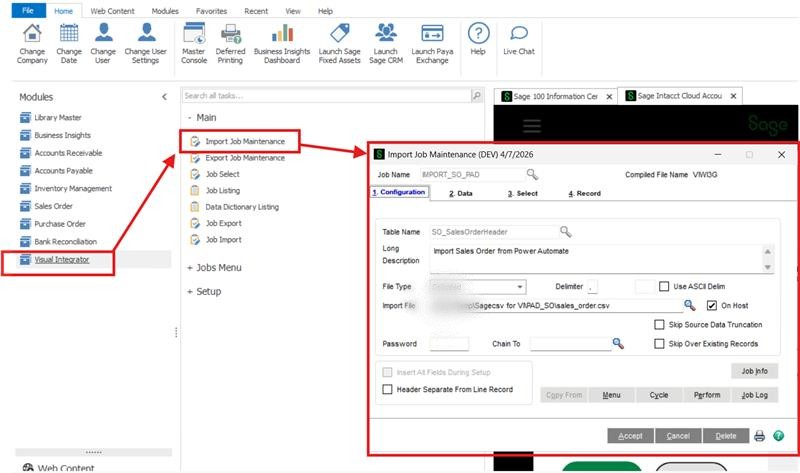
Visual Integrator is used to create Import and Export Jobs for integrating external data into Sage.
👉This is the entry point for Sales Order creation.
5.Creating Import Job for Sales Order
This screenshot shows the Import Job Maintenance screen where a job named IMPORT_SO_PAD is created.
.jpg)
This job is configured to import Sales Order data into Sage ERP using the CSV file generated by Power Automate Desktop.
👉This job is responsible for inserting data into Sage.
6.Configuring Import Job in Sage
This screenshot shows the configuration settings of the Import Job.
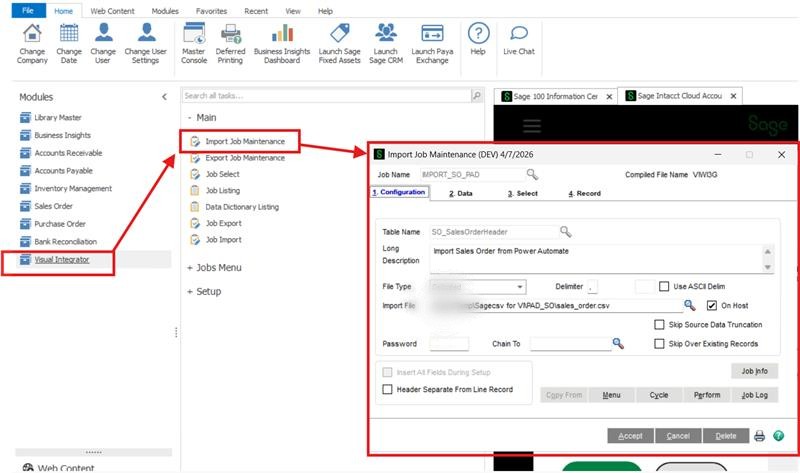
Key configurations include:
- Table Name: SO_SalesOrderHeader
- File Type: Delimited
- Input File: sales_order.csv
👉This step connects the CSV file to Sage ERP for processing.
7.Mapping Fields for Sales Order Creation
This screenshot shows how CSV fields are mapped to Sage Sales Order fields.
.png)
Fields such as Customer Number, Customer PO Number, Item Code, Quantity, and Unit Price are mapped accordingly.
👉This is the most critical step because it defines how data is inserted into Sage.
👉 At this stage, when the Import Job runs, Sage Visual Integrator processes the CSV file and creates the Sales Order inside Sage ERP.8.Creating Export Job for Sales Order Retrieval
This screenshot shows the Export Job Maintenance screen where the job EXPORT_SO_PAD is configured.
.jpg)
This job is used to retrieve Sales Order details after creation.
👉 It helps in validating whether the Sales Order is successfully created.
9.Configuring Export File Path
This screenshot shows the export configuration where the output file path is defined.
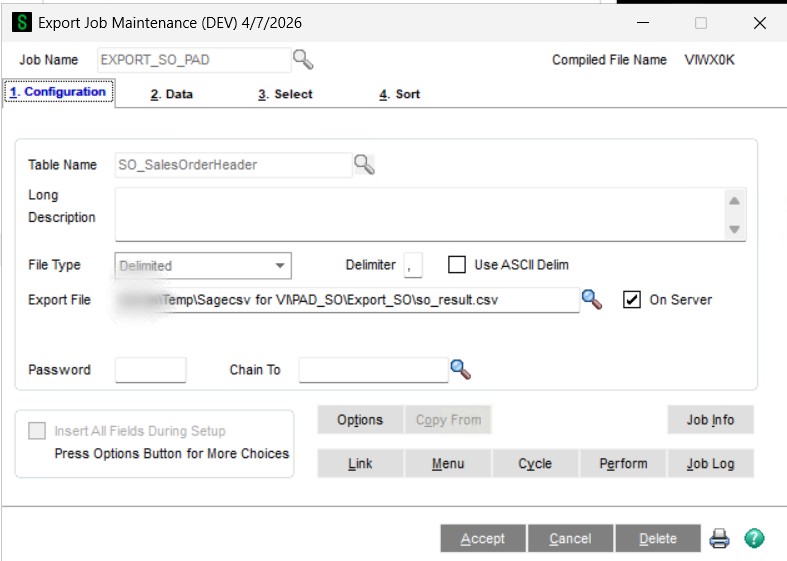
👉 This file stores the Sales Order results.
10.Selecting Fields for Export
This screenshot shows the fields selected for export such as:
.jpg)
- Sales Order Number
- Customer Number
- Order Date
👉 These fields are written into the output CSV file.
11.Generated Output Folder
This screenshot shows the Export folder where the output file so_result.csv is generated after executing the Export Job.
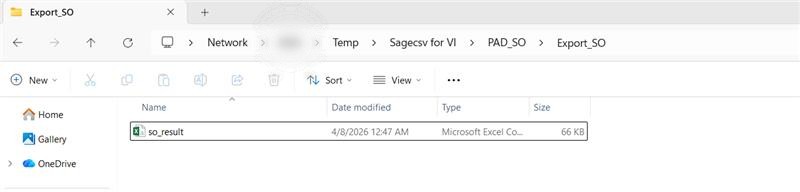
👉 This confirms that the process has been completed successfully.
12.Sales Order Output File
This screenshot displays the contents of the so_result.csv file.
The file contains:
- Sales Order Number
- Customer details
- Order information
👉 This confirms that the Sales Order has been successfully created in Sage ERP.
👉 Sales Order is created inside Sage ERP when the Visual Integrator Import Job processes the CSV file generated by Power Automate Desktop.Sales Order Field Mapping Highlights:
| Field | Source |
|---|---|
| Customer Number | D365 Account |
| Customer PO Number | Extracted from PDF |
| Ship Date | Extracted from PDF |
| Quote Number | Extracted from PDF |
| Match Score | Computed by matching engine |
| Verification Flag | Set by matching engine |
| Item Code, Qty, Unit Price | Extracted line items |
| Case Number | D365 Case |
Key Technical Points for Blog:
- Draft/Hold state is a critical governance control — no order is live until an ERP user reviews and posts it.
- Verified vs. Suggested Match orders are clearly tagged so ERP users prioritize their review queue.
- No GL posting, no inventory movement happens automatically — financial controls remain human-controlled.
- The VM running PAD must be always-on and monitored — this is a single point of dependency.
8. Exception Handling & Resilience
Every stage has failure handling built in:
| Scenario | Handling |
|---|---|
| Duplicate PO email received | Correlation ID check prevents reprocessing |
| Low extraction confidence | Flagged for review, not discarded |
| No quotation match found | Logged in D365, routed for manual handling |
| Sage unavailable | Retry with exponential backoff |
| SVI validation failure | SVI validation failure Logged + notification sent |
| VM offline | Payload queued until VM is available |
| MySQL API down | Azure Function returns error, PAF flow notified |
| Network issues | Retry logic with backoff across all HTTP calls |
9. Security Architecture
| Layer | Control |
|---|---|
| Authentication | Azure AD App Registration (OAuth 2.0) |
| Secrets Management | Azure Key Vault (no hardcoded credentials) |
| Access Control | RBAC — least privilege on all resources |
| ERP Access | Only through SVI — no direct DB access |
| Unattended Automation | Dedicated, locked-down service account |
| Audit Trail | Correlation ID + logs at every stage |
10. Non-Functional Highlights (Worth Calling Out in Blog)
- End-to-end processing target: < 2 minutes per PO
- Azure Functions auto-scale — no infrastructure management needed at volume.
- Queue-based orchestration can be added for burst handling.
- All logs retained for audit and reprocessing.
- Solution is modular — each stage can be updated independently.
11. Key Architecture Decisions Worth Highlighting
These make good discussion points in a blog:
- Power Automate Flow over a custom plugin — Lower maintenance, no deployment overhead, configurable by power users.
- Reference-based document passing — SharePoint URL instead of binary content keeps payloads small and secure.
- Two-pass matching (Exact → Weighted) — Maximizes automation rate while maintaining accuracy.
- UI automation for ERP — Respects ERP governance when no API exists; uses the system's own validation.
- Draft/Hold order state — Humans remain in the loop for financial decisions; automation handles data work.
- Correlation ID across all systems — Makes debugging and auditing trivial in a multi-system pipeline.
Diagram 1 — End-to-end architecture overview
.jpeg)
Diagram 2 — Matching engine decision flow
.png)
Diagram 3 — ERP integration flow (Power Automate to Sage)
.png)
Diagram 4 — Confidence thresholds & exception handling
.png)