Reactivate sites
Reactivate Sites in Power PagesReactivate Sites in Power Pages
On the Power Pages home page, you can view both Active and Inactive websites.
A website appears under Inactive sites when its configuration data is still present in Microsoft Dataverse (meaning an active website record exists in the Power Pages management app), but there is no active website host linked to it.
Why a Site Becomes Inactive
A site may become inactive for the following reasons:
- When a website trial expires or a website host is deleted from either the Power Pages home page or the Power Platform admin center. The website host is removed, but configuration data remains, so the site appears in the Inactive websites list.
- When website configuration is transferred from another environment. In the destination environment, the site remains in the Inactive websites list until it is reactivated.
Reactivate the Website
- In the target environment, go to the Power Pages home screen and select Inactive sites.
- Review the list of inactive websites available in that environment.
- Choose Reactivate.
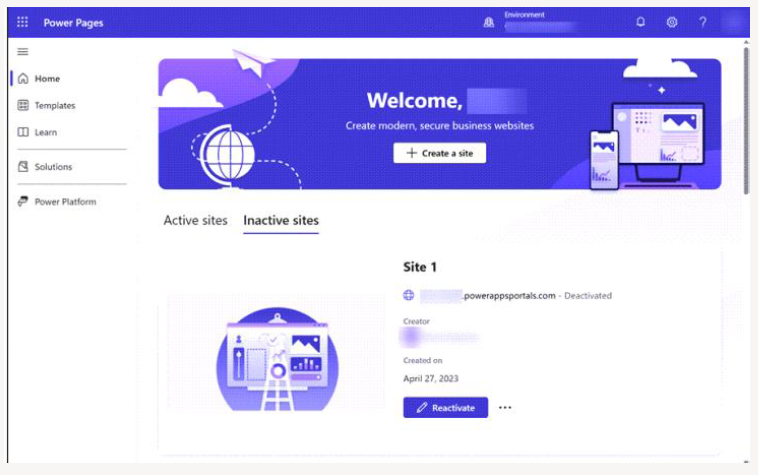
- Enter a name for the reactivated website and create a web address, or keep the default values.
- Click Done.
- Your website will now be active in the environment.
Any website shown in the Inactive sites list on the Power Pages home page will also appear under Active Websites in the Portal Management app.