Use design studio
Using the Power Pages Design StudioUse the Design Studio
The Power Pages design studio provides an easy-to-use, low-code interface that allows makers to build and configure powerful business websites.
Note:To edit a site in the design studio, you must have the necessary roles and permissions within the same Microsoft Dataverse environment as your site.
Steps to Access the Design Studio
-
Open Power Pages.
If this is your first time accessing it, select Try it for free to sign up for a 30-day trial. -
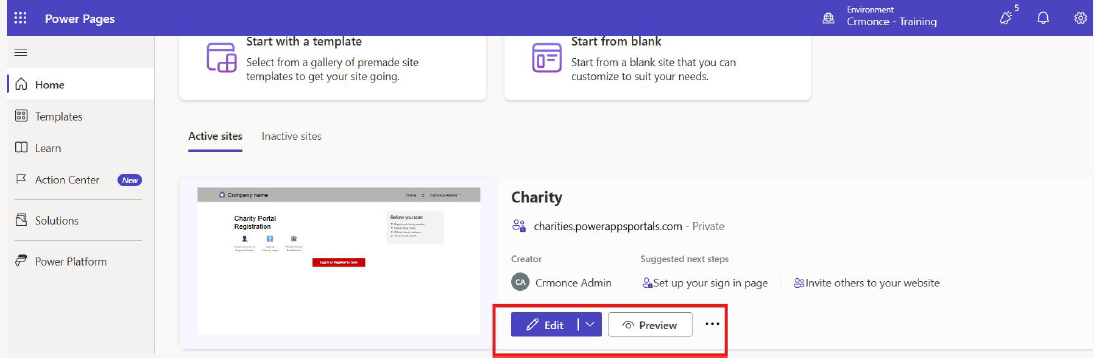
Find your site under the Active sites list.
If you haven’t created one yet, select Create a site to set up your website. -
Click Edit to open the Pages workspace and customize your site
without writing any code.
If you prefer editing the underlying code, choose Edit site code to work in Visual Studio Code for the Web.
The design studio includes four main experiences—called workspaces—each designed to support specific tasks for users.
Learn more about the workspaces in the design studio to understand how each workspace helps with building and managing your site.
Page Editing Options
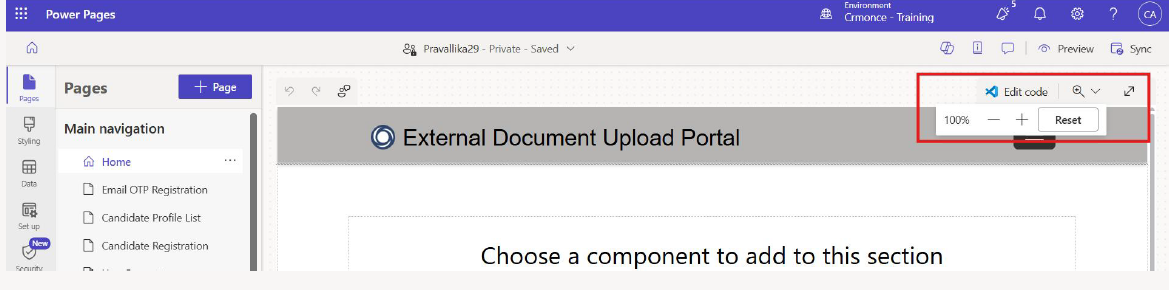
While designing your page, you can perform the following actions:
- Zoom in (+) to focus on details
- Zoom out (–) to view the overall layout
- Reset the zoom to the default level
- Switch to the code editor if needed
Preview Your Site
After building your page, use the Preview option to see how it looks on different devices.
- Select Desktop to open a preview in a new browser tab
- Scan the QR code to preview the site on your mobile device
- Email a preview link for mobile viewing
Access the Portal Management App and Sync
For advanced settings not available in the design studio, you can open the Portal Management app from the overflow menu.
- Select the ellipsis (…) icon on the left navigation panel
- Choose Portal management
If you’ve made changes in the Portal Management app, select Sync in the upper-right corner of the design studio to update and reflect those changes.
Next Steps
- Create and manage pages
- Customize pages
- Style your page