Connect Code Apps to Data
Connect Your Code App to DataHow to: Connect Your Code App to Data
Code apps support integration with Power Platform connectors for secure data access. All connections must be created and managed in Power Apps.
Create and Set Up Connections in Power Apps
- Create and configure connections from the Power Apps Connections page.
-
Supported connectors include:
- Dataverse (CRUD operations)
- SQL Server
- SharePoint
- Office 365 Users & Groups
- Azure Data Explorer
- OneDrive
- Microsoft Teams
- Translator
- Weather
Launch the Power Apps Connections Page
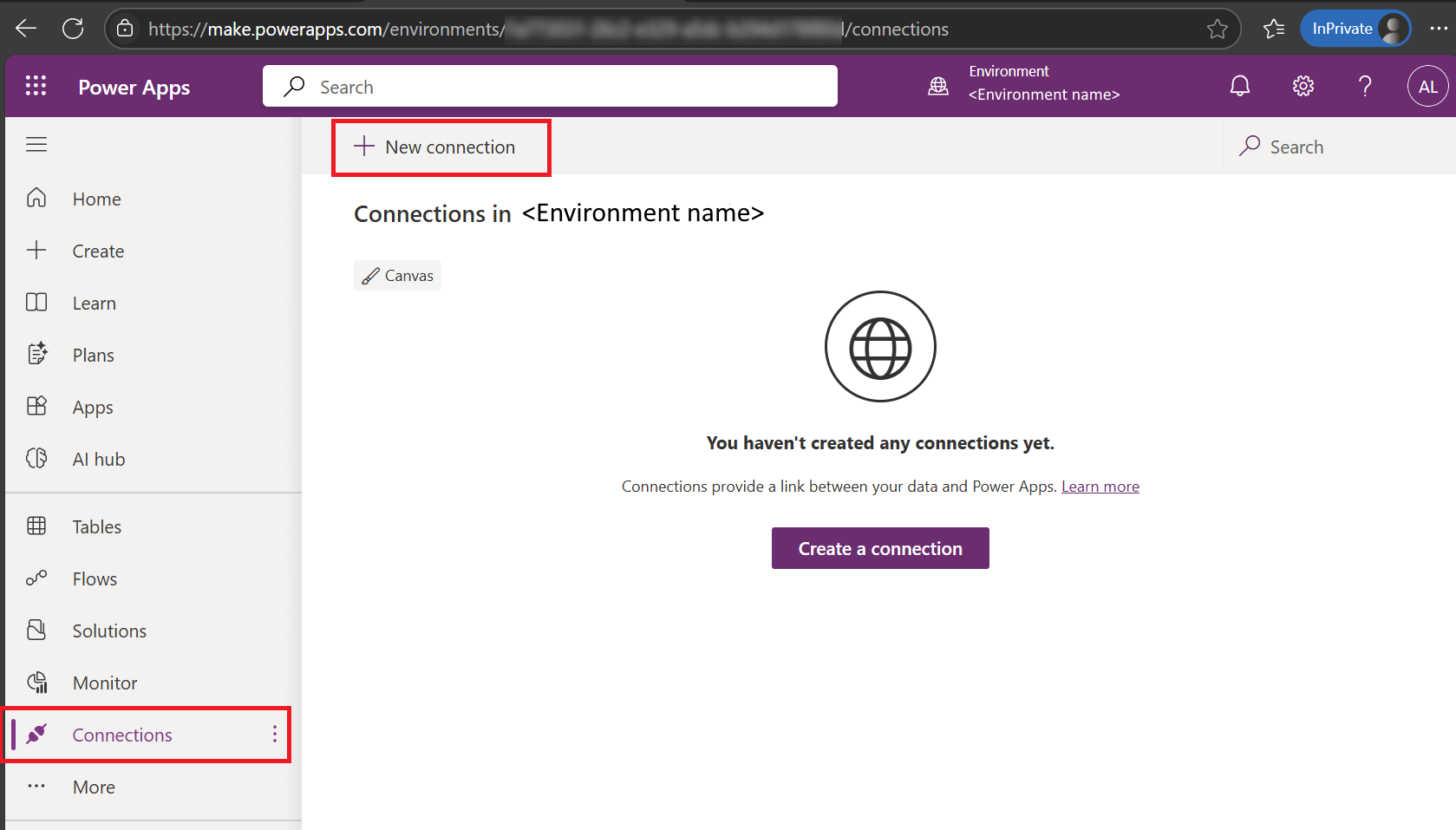
Go to Power Apps and navigate to the Connections page from the left-hand navigation.
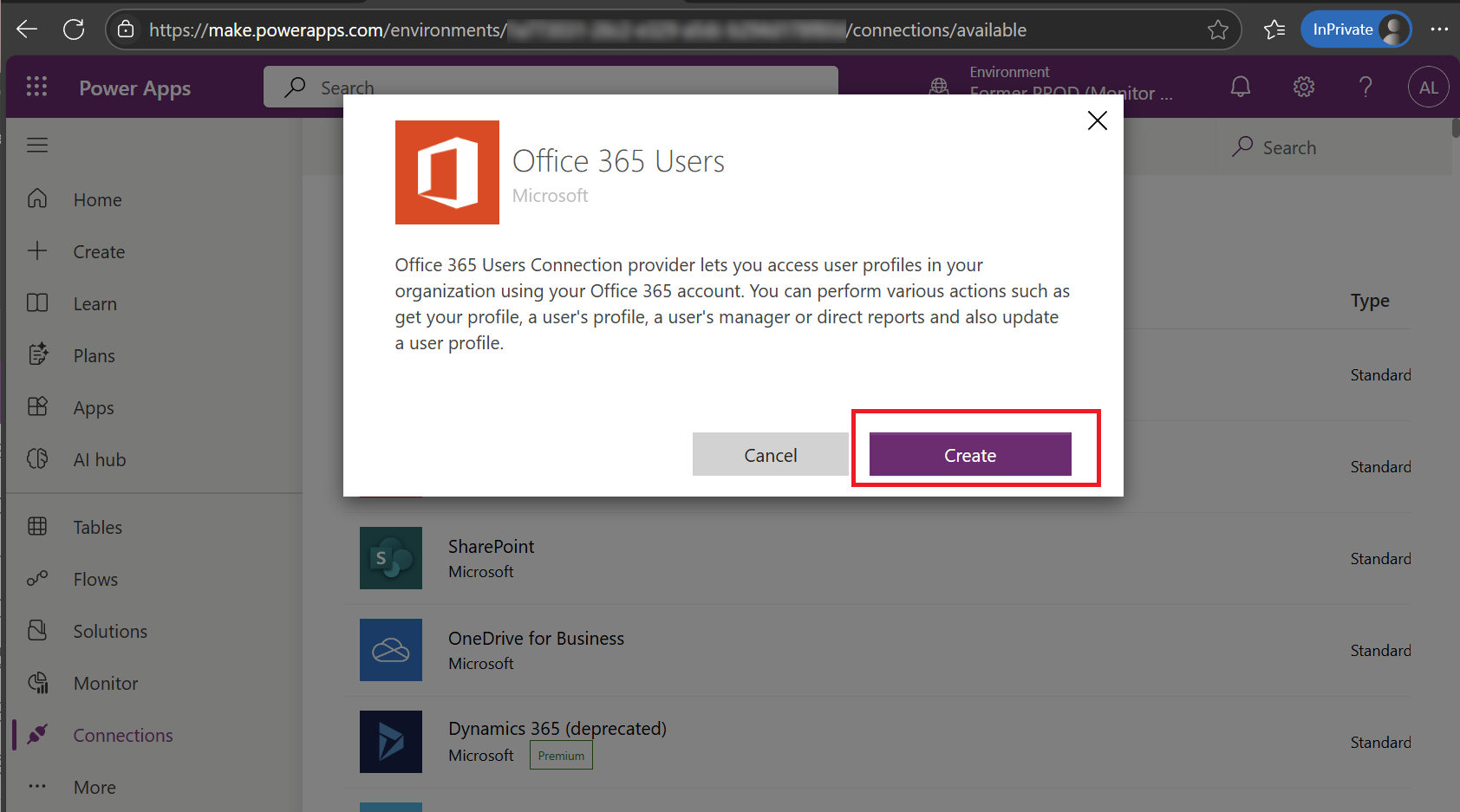
Example: Create an Office 365 Users Connection
- Select + New connection.
- Select Office 365 Users.
- Select Create.
Get Connection Metadata for All Created Connections
There are two ways to retrieve connection metadata:
-
Using PAC CLI:
Runpac connection listto view all connections along with their Connection ID and API Name. -
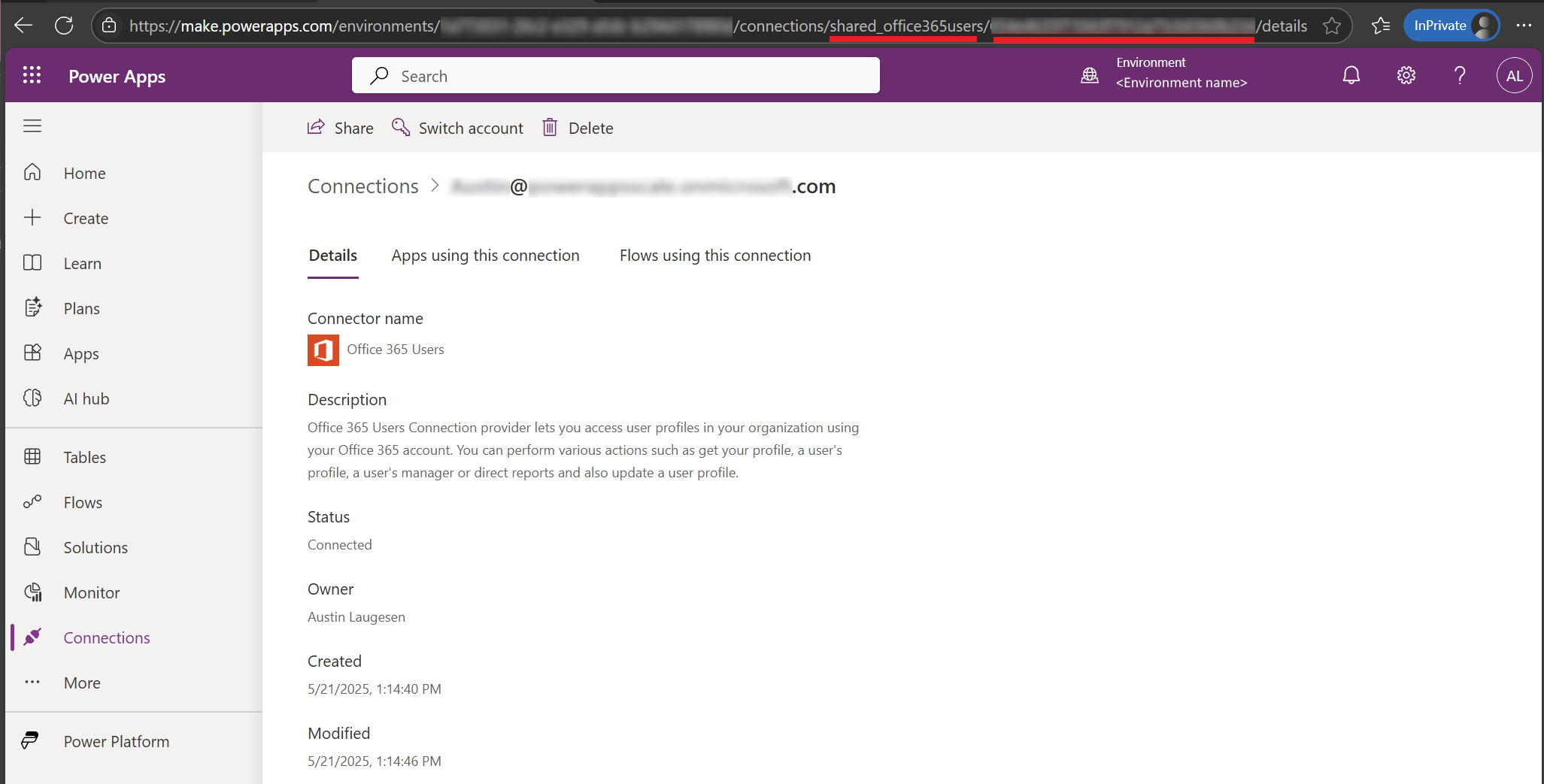
Using Power Apps URL:
Open a connection in Power Apps and copy the API Name and Connection ID from the browser URL.
Add Data Sources to a Code App
- Create or identify existing connections in Power Apps and collect the API Name and Connection ID.
- Add data sources to the code app using the Power Platform CLI (PAC).
-
Supported data source types include:
- Nontabular data sources (e.g., Office 365 Users)
- Tabular data sources (e.g., SQL Server, SharePoint tables)
- SQL stored procedures
- Adding a data source automatically generates typed TypeScript models and service files.
- If a data source schema changes, delete and re-add the data source to regenerate the models.
Use Connections, Validate, and Deploy
- Optionally use connection references to make solutions environment-aware across Dev, Test, and Prod.
- Ensure Power Apps SDK initialization before performing data operations.
- Import generated models and services from the
/generatedfolder. - Perform data operations using the generated service methods.
- Validate functionality locally using
npm run dev. - Build and deploy the app to Power Apps using
npm run build | pac code push.