Create a Basic Asset Management API with Azure Functions
Create a Basic Asset Management API with Azure Functions
Asset Management API using Azure Functions
- Demonstrates how to build a basic mock REST API using Azure Functions
- API returns a list of assets for testing and learning purposes
- Integrated with Power Platform through API Management and a Custom Connector
Prerequisites
- Azure Portal access
- Power Platform environment with Code Apps enabled
Create a New Azure Function in the Azure Portal
- Go to the Azure portal
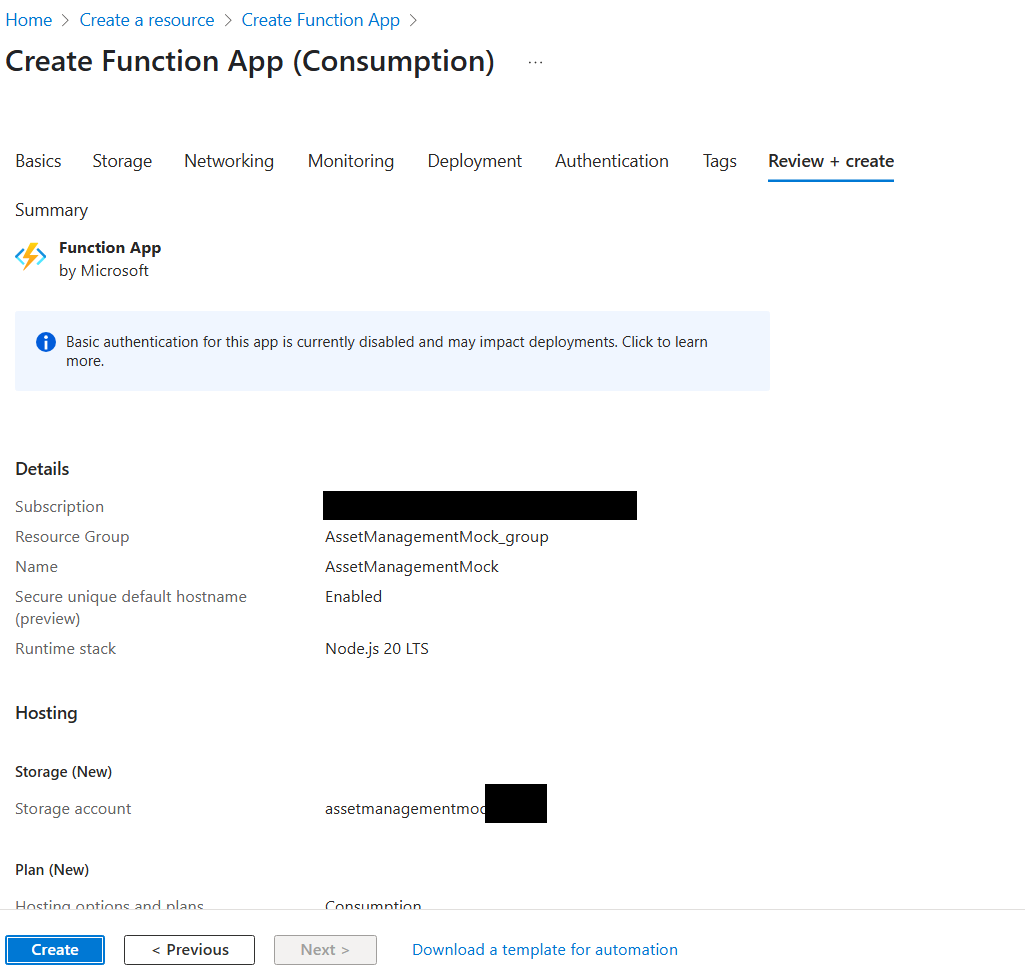
- Select Create a resource > Web > Function App
- Select Consumption as the hosting plan
- Fill in the required details
- Select Review + create and then Create
- Once deployment is complete, go to your new Function App
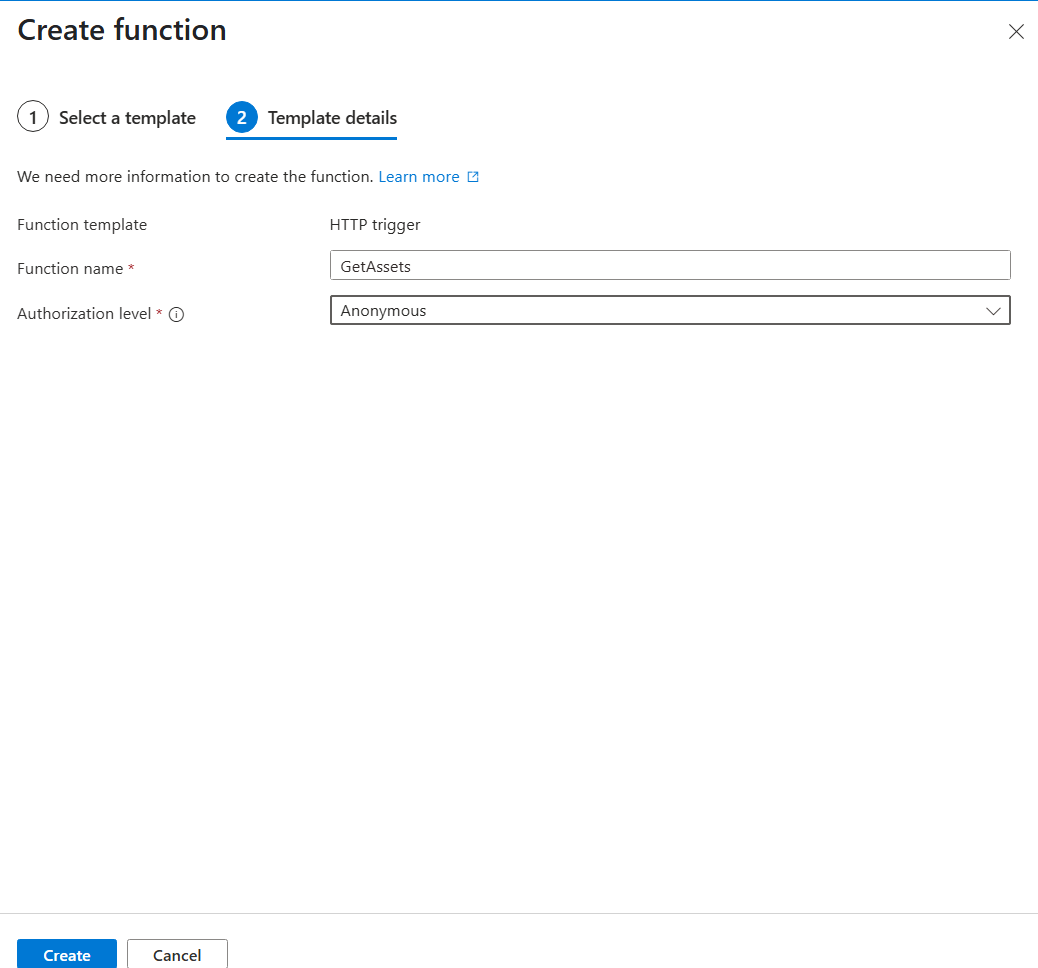
- Select Create function
- If prompted, choose Develop in portal as the development environment
- Select HTTP trigger as the template
- Name the function GetAssets and set Authorization level to Anonymous
- Select Create to create the function
- In the Code + Test tab, replace the default code with the mock API code
- Select Save
| Detail | Description |
|---|---|
| Subscription | Select your subscription |
| Resource Group | Create a new one or use an existing one |
| Function App name | Choose a unique name |
| Runtime stack | Node.js |
| Region | Choose a region close to you |
API Management & Power Platform Integration
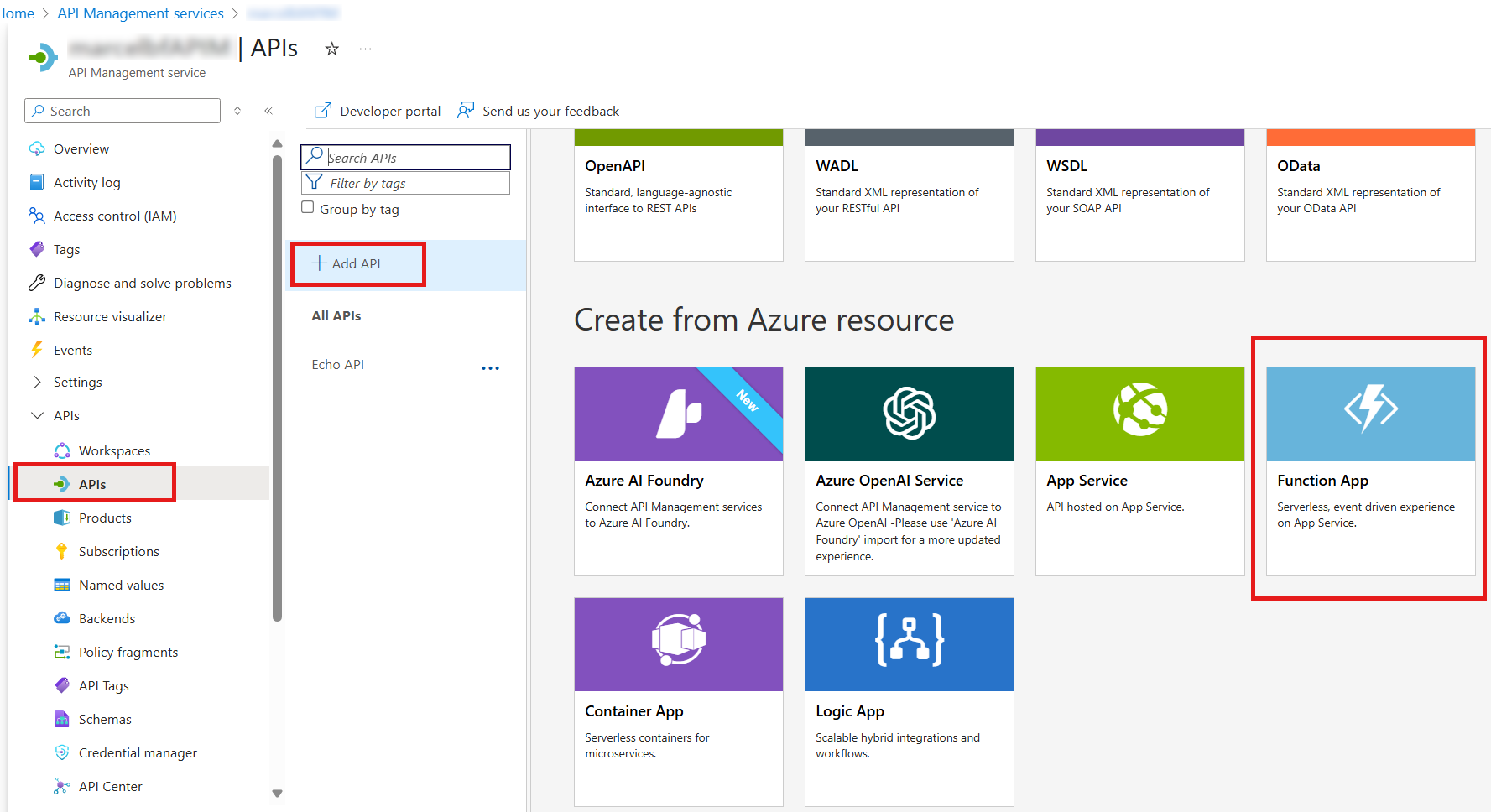
Expose API via API Management
- Create an API Management (APIM) instance using the Developer tier
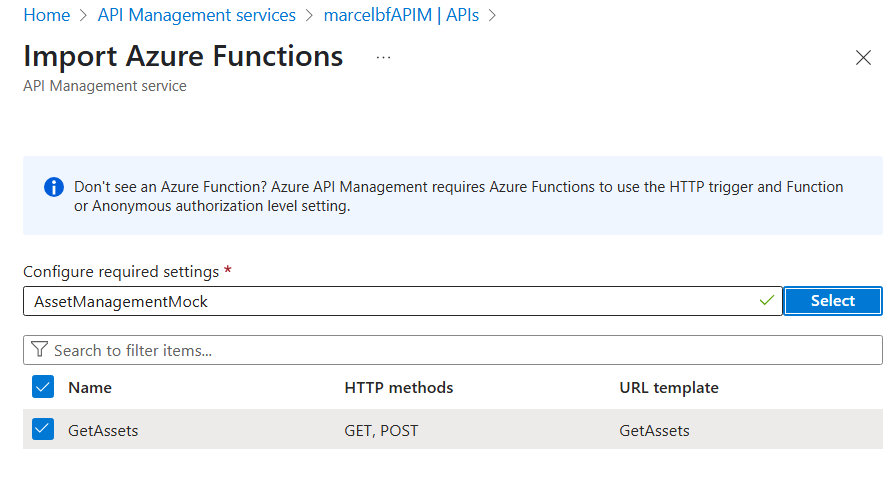
- Import the Azure Function as an API
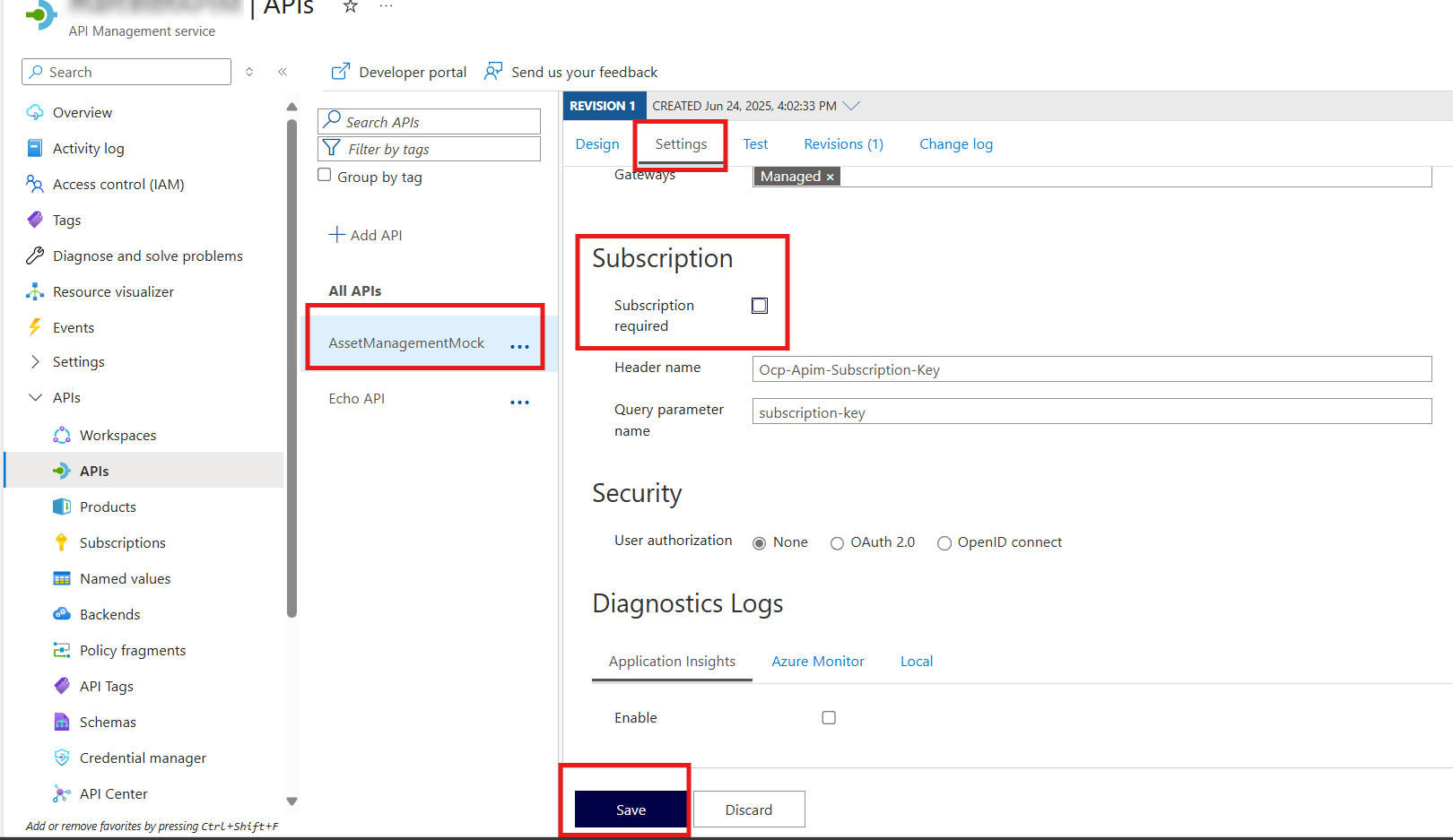
- Disable the subscription key for simplified access
Create a Custom Connector in Power Platform (via Azure Portal)
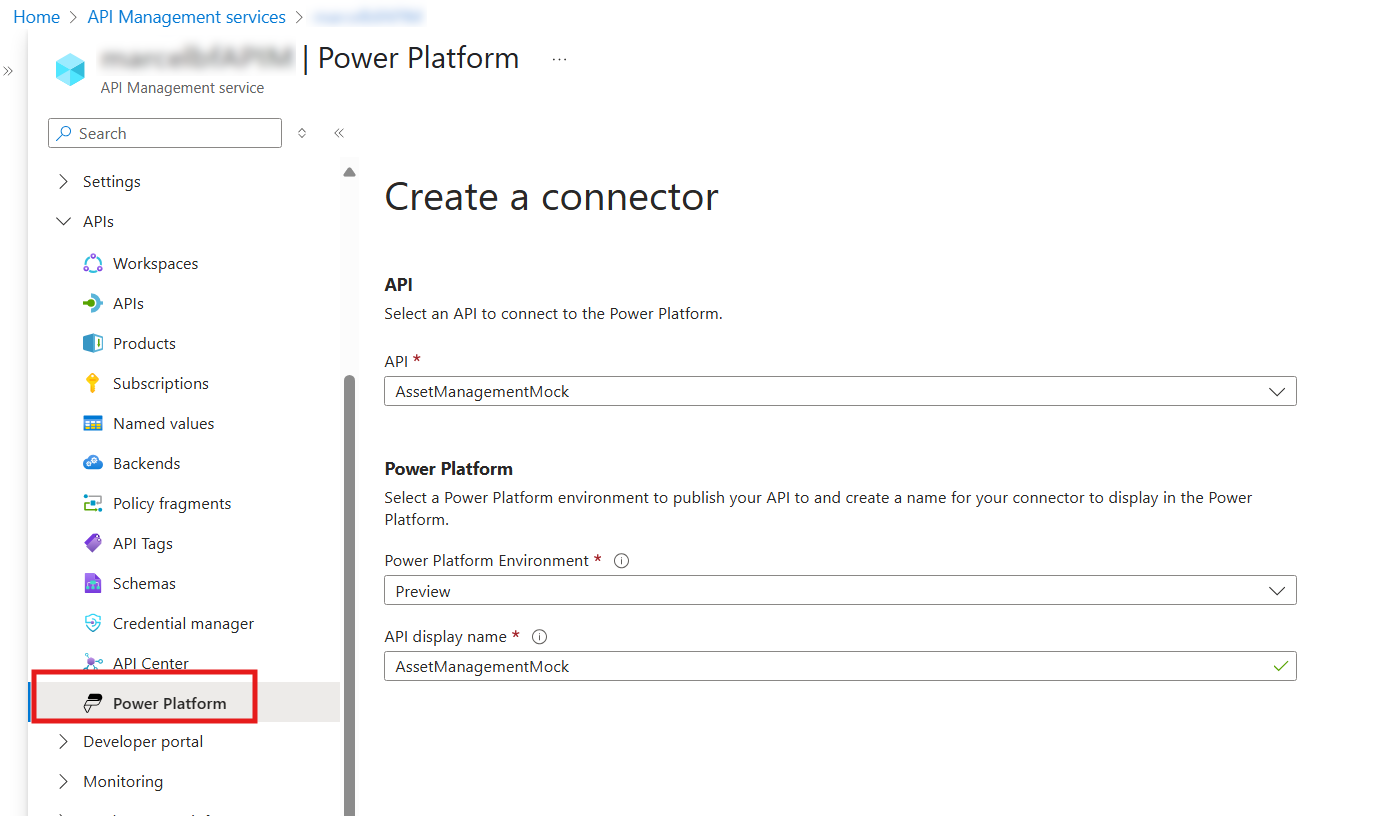
- In API Management Services, select Power Platform from the left menu under APIs
- Select Create a connector
- Select your API
- Choose your Power Platform environment and provide a display name
- Select Create to generate the custom connector
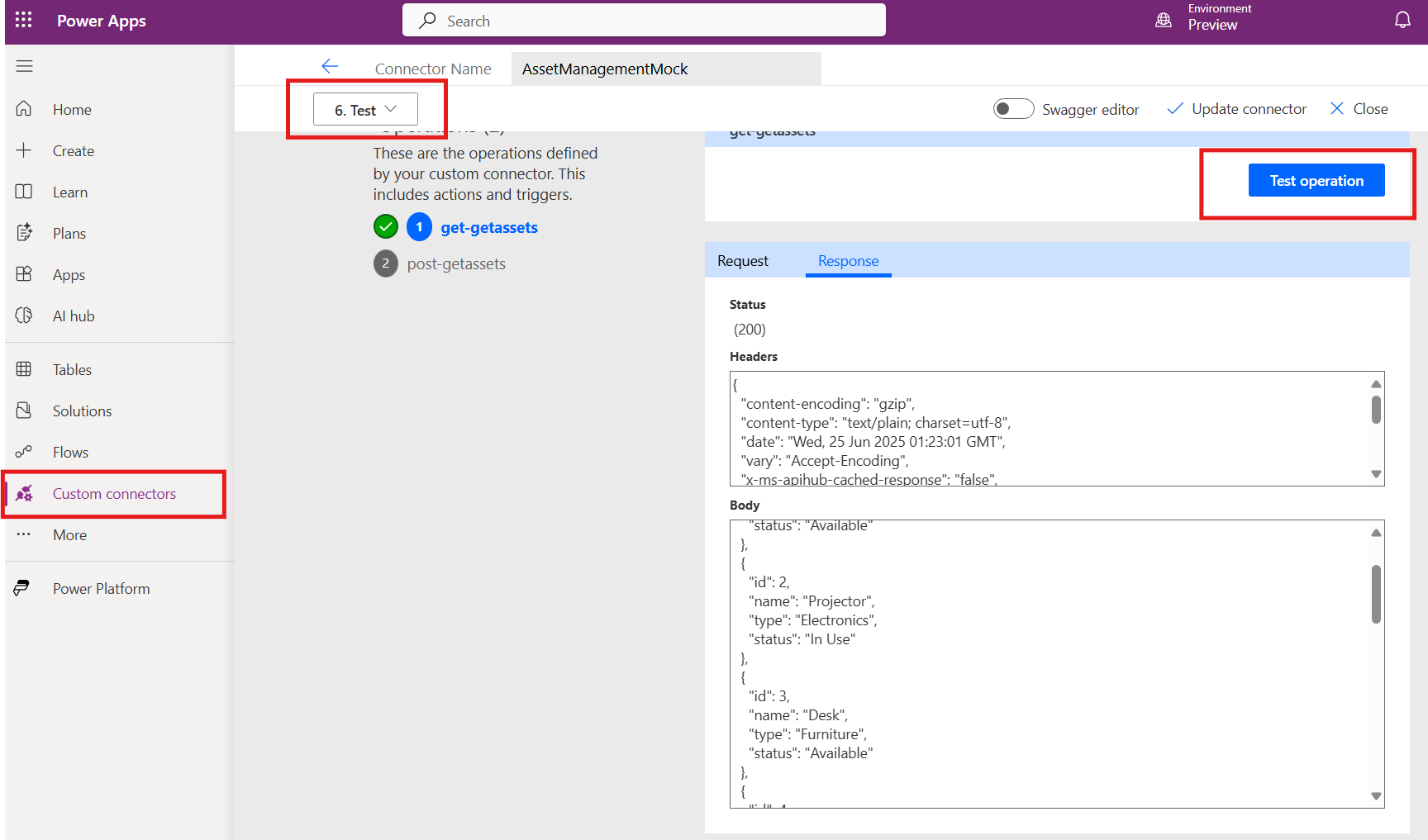
- In Power Apps, go to Custom connectors to review, edit, and test the connector
Next Steps
- Use the custom connector inside Power Apps Code Apps
- Add additional API operations as needed
- Secure the API for production environments